
Budgets
The ‘Budgets’ option provides the opportunity to create, import, and store an organization's general ledger budget data within a Mondial application. Uploaded budget data can subsequently be incorporated into a report writer specification and called upon for analysis alongside your actual data. The process of running a report with budget data has been described in this article.
Multiple budgets can be created and report data. Note that the term budgets in this case also covers other types of "non-actual" data such as forecasts and plans. In addition, multiple "versions" of data can be held for each budget. In this way, iterations that take place within the typical planning process can be catered for, monitored, and reported on through the report writer portal.
Furthermore, a budget (and a version within it), is independent of accounting years. For example, it is not necessary to create a budget/version for the accounting year 2023 and then create a subsequent budget or version for 2024 You can simply create a budget, and data within that budget can then be related to multiple years, much in the same way that actual data is stored. In this way report writer maintenance and time-based comparative reporting become straightforward.
Budgets can also be set by reporting set, natural account set, and currency, which allows for even greater flexibility from a reporting perspective
By way of example, imagine a scenario where budgets are created and stored as follows:
| Budget Name | Version | Natural Account set | Currency | Description | Accounting Years |
| Main Budget | Pass 1 | Local chart of accounts | Operating currency of the company | First working pass in budget process detail account level | Year 1, Year 2, Year 3, etc. |
| Main Budget | Pass 2 | Local chart of accounts | Operating currency of the company | First working pass in budget process detail account level | Year 1, Year 2, Year 3, etc. |
| Main Budget | Final | Local chart of accounts | Operating currency of the company | First working pass in budget process detail account level | Year 1, Year 2, Year 3, etc. |
| Forecast | Q1 | Local chart of accounts | Operating currency of the company | First-quarter full-year forecast at a detailed account level | Year 1, Year 2, Year 3, etc. |
| Forecast | Q2 | Local chart of accounts | Operating currency of the company | Second-quarter full-year forecast at a detailed account level | Year 1, Year 2, Year 3, etc. |
| Forecast | Q3 | Local chart of accounts | Operating currency of the company | Third-quarter full-year forecast for the year at a detailed account level | Year 1, Year 2, Year 3, etc. |
| Forecast | Q4 | Local chart of accounts | Operating currency of the company | Fourth-quarter full-year forecast at a detailed account level | Year 1, Year 2, Year 3, etc. |
| Strategic Plan | V1 | Group Chart | Group Currency | Higher-level planning analysis at a common "parent" account level | Year 1, Year 2, Year 3, etc. |
All of these versions of data, across multiple time periods, would then be available to the report writer (alongside actual data), for comparative reporting and analysis
To work with the budget module of Mondial, click on ‘Budgets’ in the ‘Enterprise Set Up’ drop-down:
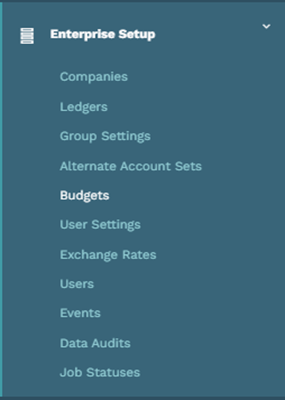
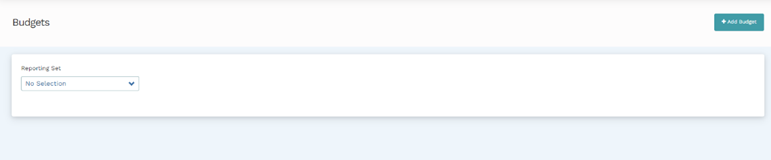
This will redirect you to the ‘Budgets’ page which allows you to:
- Create new budgets.
- Make changes and updates to existing budgets.
Creating a New Budget.
To create a new budget, click on the ‘Add Budget’ button on the top right-hand side of the screen.
This will redirect you to the New Budget page where the following parameters need to be completed:
- Name
- Description
- Reporting Set
- Natural Account Set
- Reporting Currency
- Version
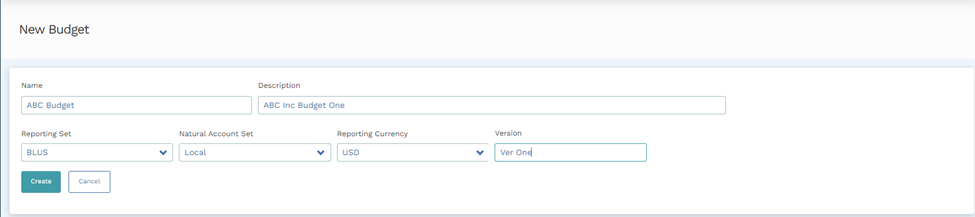
After defining these, click ‘Create’. The application will present a message box informing you that the new budget has been successfully logged into the system.

Editing a Budget
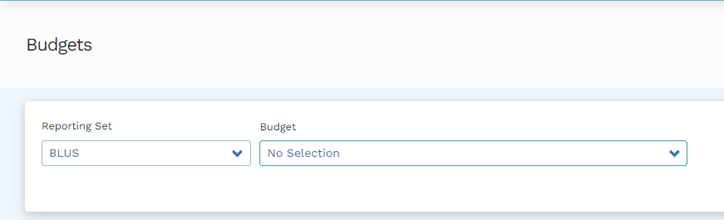
Once a new budget has been created, you can edit it on the Budgets page. To begin editing a budget, select the reporting set associated with it in the set-up process.
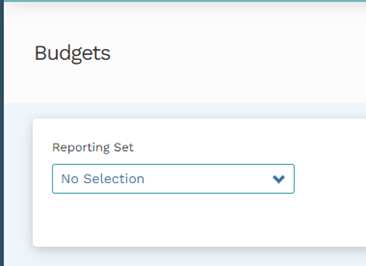
After selecting the Reporting Set, a new drop-down containing the budgets associated with the reporting set will be presented. Click on the drop-down to select the preferred budget.
After selecting the budget, a new field listing the Versions associated with the budget will be presented. Two actions can be performed:
- Deleting a budget.
- Editing a budget.
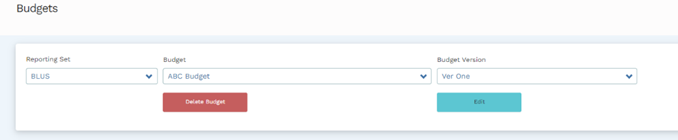
Note: A new budget will typically contain one version which would have been created during the Budget setup process. Additional versions can be created during the editing process.
Delete Budget
Deleting a budget will delete both the budget and all versions associated with it, plus all previously imported data.
Editing a Budget Version
Three actions can be performed in this section:
- You can change the name of the budget.
- You can change the reporting currency used in the budget
- You can change the version reference of the version selected.

Budget Items
There are several actions that can be performed within this section:
-
- Download Table as CSV – this action will download as a CSV file the budget/version in a specified format, with appropriate fields headings and ALL DATA previously imported into Mondial for this budget version
Note: In the case of a new budget, the downloaded file will not be populated with data - it will simply contain the appropriate field headings.
- Download Table as CSV – this action will download as a CSV file the budget/version in a specified format, with appropriate fields headings and ALL DATA previously imported into Mondial for this budget version
- Download Template CSV file – download an example file that can be used as a template for adding new data.
Note: The data populating the template CSV is only provided by example as a building block to create a more detailed budget specific and relevant to the company for which the budget is being created
Here is an example of the structure of the template file:
| Account Number | Name | Period Type | Period End Date | Amount |
| 40000-00-000-000000 | Revenue | fiscal month | 01/31/2015 | 1000 |
| 40700-00-000-000000 | Discounts Granted | fiscal month | 02/28/2015 | 1000 |
| 50850-00-000-000000 | Discounts Taken | fiscal month | 03/31/2015 | 1000 |
| 12000-00-000-000000 | Accounts Receivable | fiscal month | 04/30/2015 | 1000 |
- Budget Upload - To import (upload) a new or amended set of budget data, first decide if this upload will overwrite an existing version for the selected budget, or whether the upload should be written to a new version.

to overwrite an existing version:
-
-
- select the budget version from the drop-down list
- select the CSV file that contains the data.
- Select upload. All data in the selected version will be replaced by data contained in the selected file.
-
to create a new version:
-
-
- follow the ‘Edit Budget’ steps listed above up to the Budget Items screen.
- On the budget items field, change the selection of the Overwrite Version from a selection of a version (in the case of the Version used in this example from Ver One) to ‘No Selection’.
- The New Version number field will be open for edit.
- Enter the new version number
- Select the local file of the new budget version.
- Select upload.
-
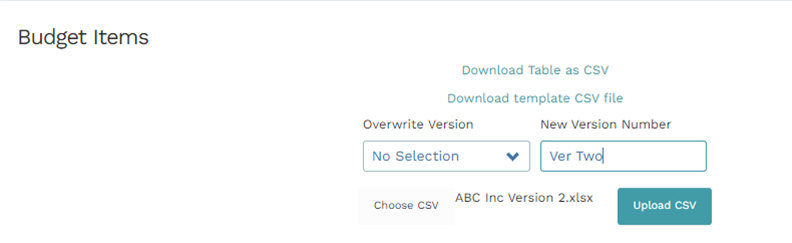
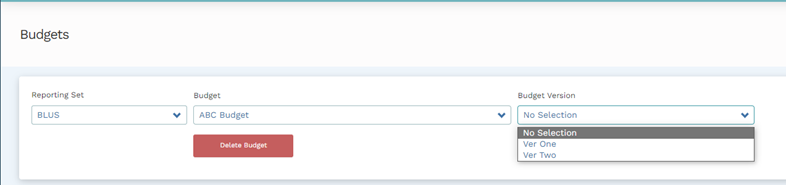
Using this process, you can create as many versions of a budget as needed. These new versions will be associated with the core budget name. Changes and updates can then be made on individual versions.
Uploading Budgets from Workbooks
When uploading budget data, the system can only read one worksheet. The data in the uploaded file should be in the format shown in the template table above. You can download a system-generated sample by clicking on “Download Template CSV file” under budget items on the “Budgets” page.
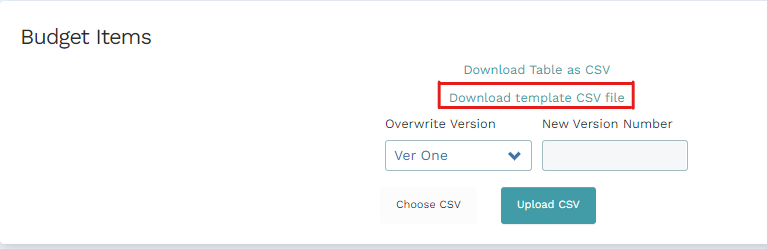
It’s recommended to upload budget data into the software using a .csv file. If your file is in a different format, you should save a new copy in .csv format.
In case you have used several worksheets to create budget data, you should extract the specific worksheet with budget data from the workbook using standard MS Excel techniques as follows:
Hover on the worksheet with the budget data and right-click on it then select “Move or copy”
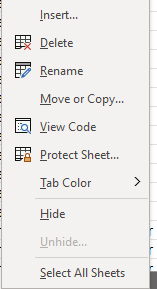
The following screen will be presented:
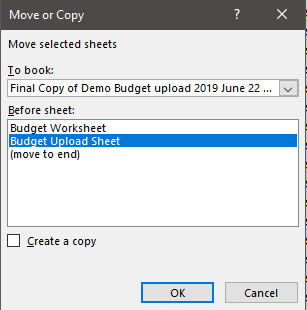
Click on the “To book” drop-down and select “New Book.”
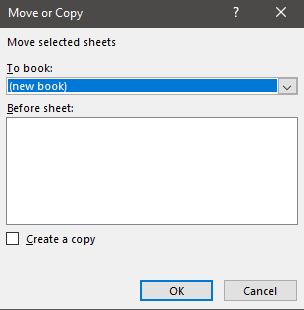
Click on “Okay” and a new file with the budget data will be created.
Note: You can check the ‘Create a Copy’ box to create a new copy of the budget data worksheet without extracting it completely from the workbook. Once extracted into a new book, save the workbook in a csv format. The name of the file can be of your choosing.
You can read more technical support documentation from Microsoft on how to save a single worksheet from a workbook here and how to save a file with a different format as a .csv file here.
Comments
0 comments
Please sign in to leave a comment.