
To create a new ledger, click on 'Ledgers' from the Enterprise Setup dropdown.
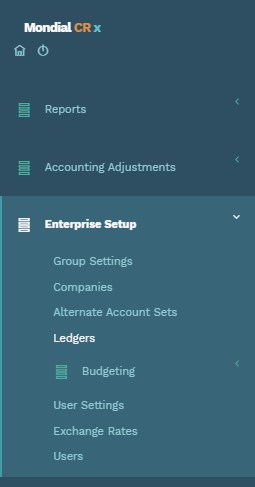
This will redirect you to a list of the ledgers created within your organization previously; as shown below:
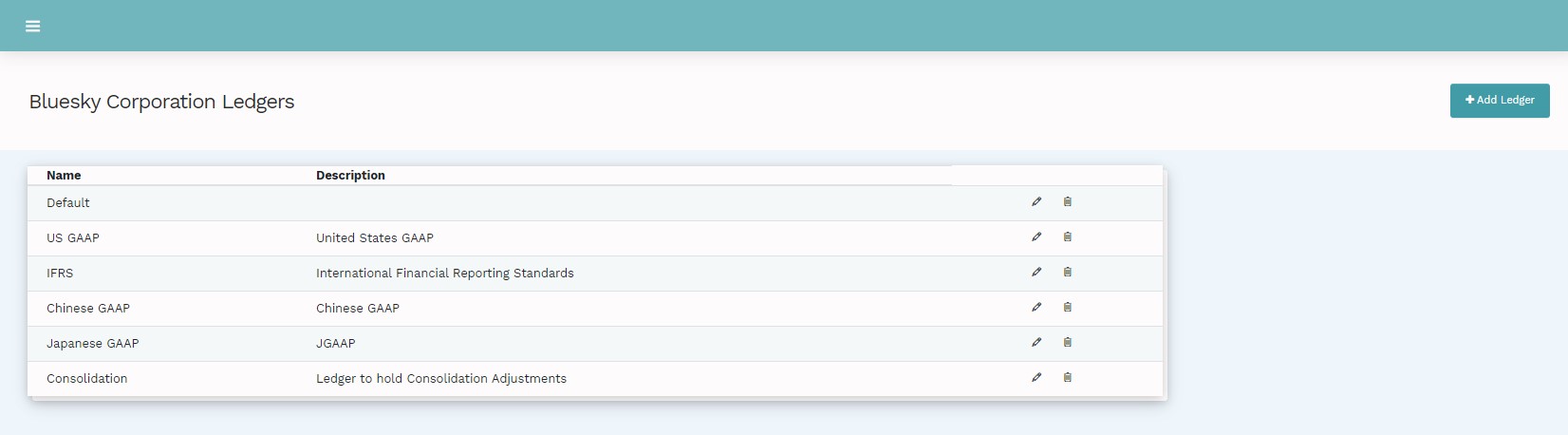
To create a new ledger, click on the "Add Ledger" icon on the top right section of the page.
clicking on the option will redirect you to a set-up page. To create a new ledger, enter the relevant information into the data entry fields shown below:
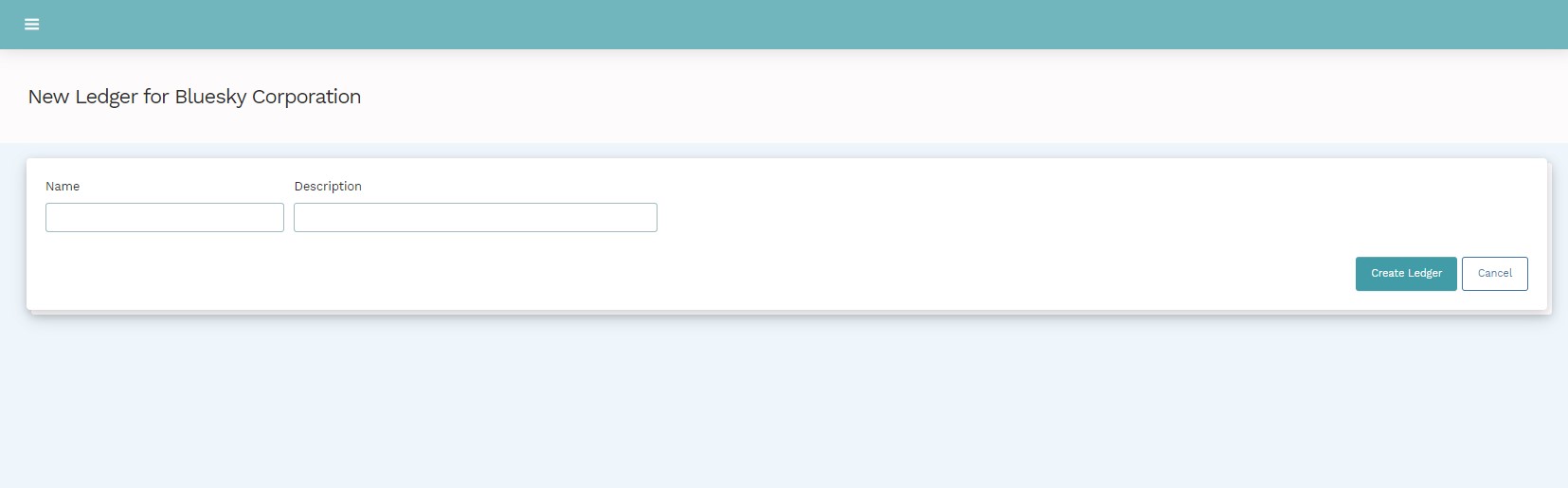
Once the relevant information has been keyed in, click on "Create Ledger" and a newly defined ledger will be presented in the organization's list.
There are a couple of actions that can be done to the ledgers defined in the list of ledgers.
1. Editing a Ledger
2. Deleting a Ledger
Editing a Ledger
First, new ledgers can be edited. To do this, click on the pen icon related to a ledger. The editing column is pointed out below:
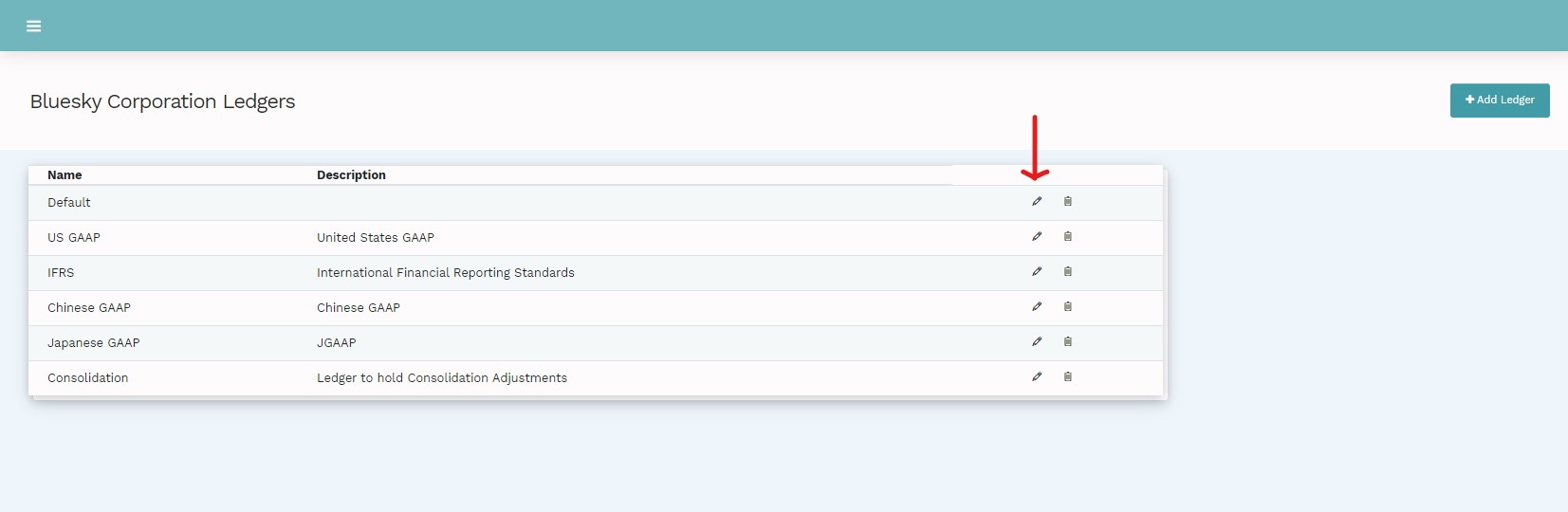
Clicking on an editing icon will redirect you to the set-up page. For example, clicking on edit the US GAAP ledger from the list of ledgers above would present the following screen:
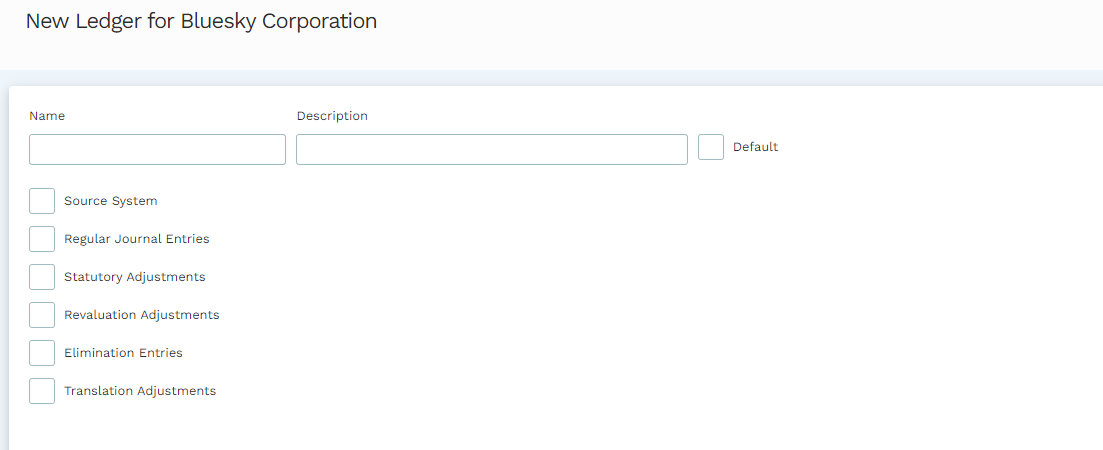
After changing the information, click on the "Update Ledger" icon and the changes will be applied to the ledger.
Note: If you are creating a Group Consolidation Ledger, check the boxes related to the relevant transaction types.
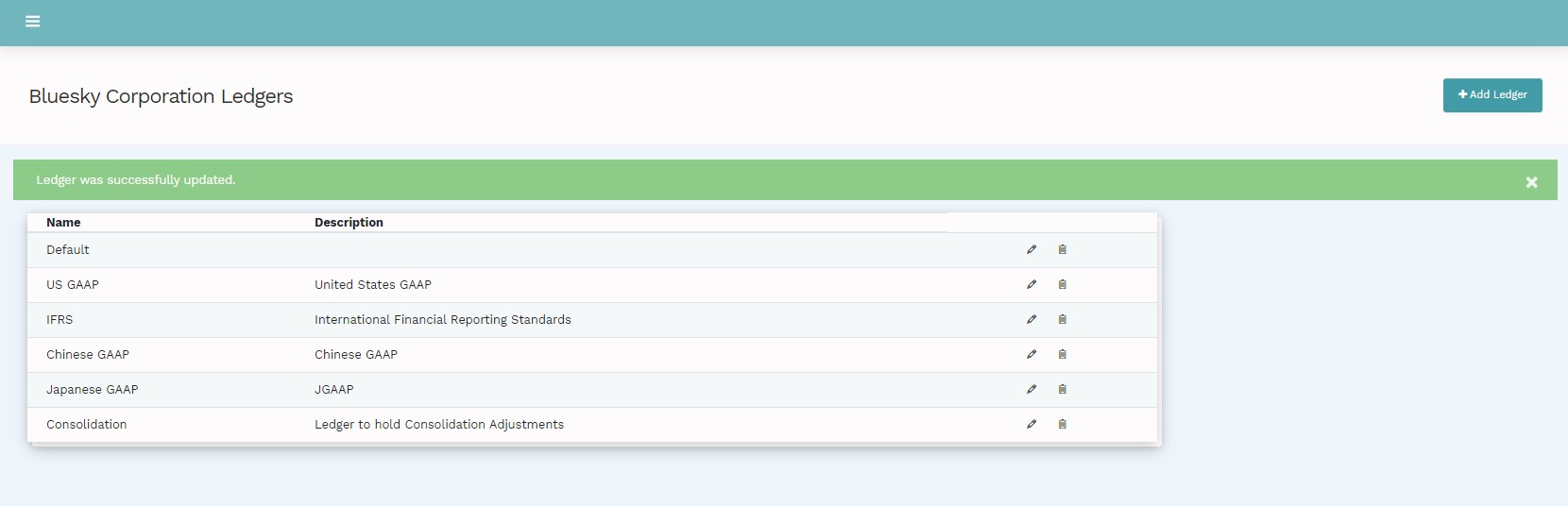
Once every configuration setting has been set up, click on "Create Ledger." A confirmation pop-up will appear to confirm that the changes have been made as shown below:
2. Deleting a Ledger
To delete a ledger from the ledgers available in the list, click on the "Bin" icon on which is the last icon displayed on any particular row
A pop-up message will appear asking you to confirm the action.

Click "Ok" to progress with the action or "cancel" to stop deleting.
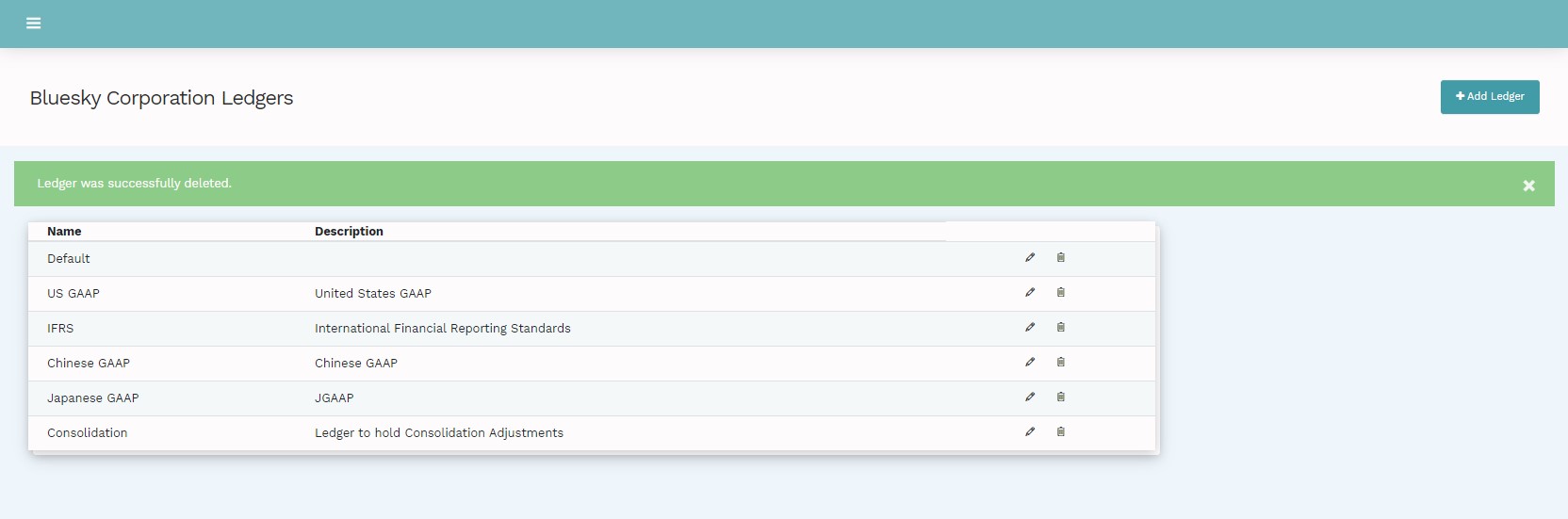
A pop up should appear confirming that the ledger has been deleted:
Comments
0 comments
Please sign in to leave a comment.