
Group Settings create the default language and date formats for all companies with the Mondial Accounting hub. The function also manages whether two factor authentication is to be deployed for all users of the application. Only a user associated with an appropriate role can affect any of the group settings.
The preferred options selected in the Group Settings will be applied as the default to all the companies within the group.
Different users within the company can change their personal settings options by making use of User Settings in the Enterprise Setup dropdown as shown here.
To get started on Group Settings;
Click on Group Settings; which is the first option in the Enterprise Settings dropdown:
The group settings options page will be displayed in two sections as described below.
The default language and date settings are US English and US date format respectively. By default, two factor authentication is disabled.
To change any of the settings, click on the pen-icon on the intersection between a specific row with the "edit" column.
When editing both rows, a drop-down with some of the elements that the user can choose from will appear under the "State" column and an "Update" button to the effect of saving the changes made within the user options.
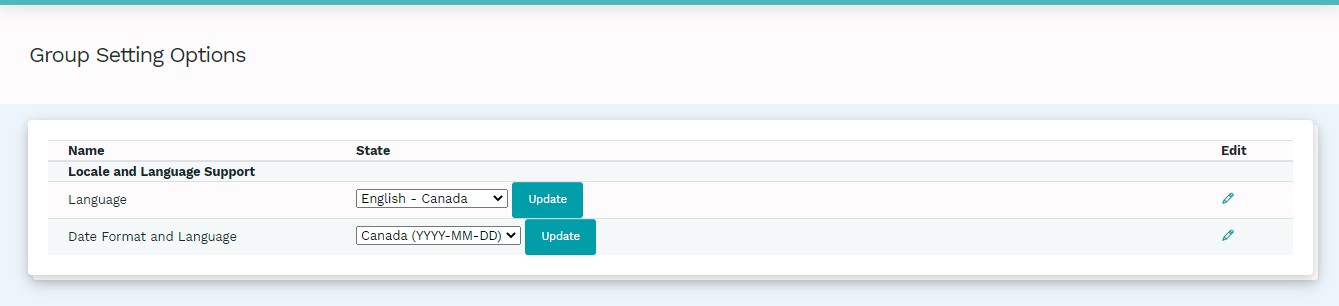
The drop-down on both rows presents the user with a number of different language and date format options.
The following language options are available: English - Canada, English - US, Spanish - US and Chinese - Simplified.
The following date formats options are available: Canada (YYYY-MM-DD), US (MM/DD/YYYY) and Mexico (MM/DD/YYYY).
To enable two factor authentication, select the edit pen on the right of the screen, click the checkbox and and select update to it immediate right of the check box
For a more details about how to initiate two factor authentication, please see the following article: Two Factor Authentication
In the second section of the group setting page , the current users email credential can also be edited. A password can be changed as well as invoking a reset of two authentication authentication (assuming it has been previously enabled) for this user. To invoke any user changes click the update user option.
Note
A user within a group of companies can change their language and date settings.
To do this, click on the user settings option under enterprise set-up.
Comments
0 comments
Please sign in to leave a comment.