
By following the steps described in the articles below, a user will now have the building blocks in place to compile a Mondial CRx report.:
Combining Row Headers, Footers, Column Layouts and Row Formats will create a report template that can be seeded with report run-time parameters.
Furthermore, the ability to ‘mix and match’ allows the user to create different styles of a report from the same core definitions.
Building a report template
From the Mondial CRx's Home Screen, choose report Writer, Reports.
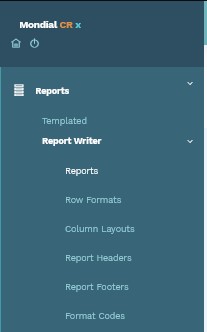
Selecting this option will display a list of all previously built report templates, with an option to add a new template at the top right of the screen.
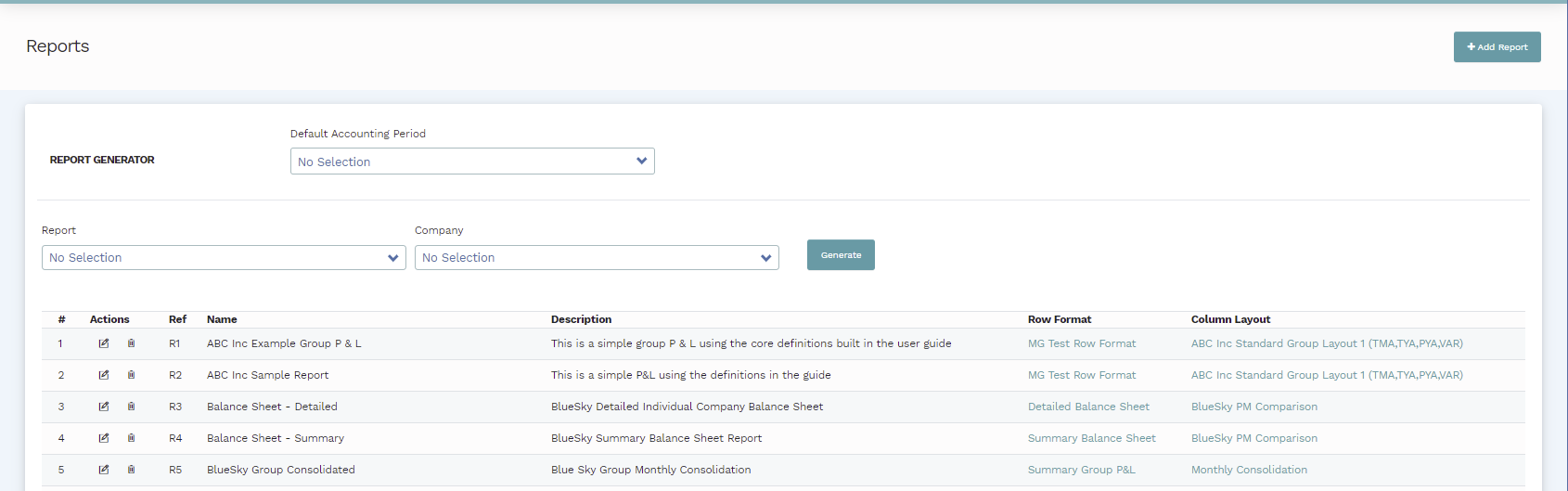
Note: Existing reports can be edited (or deleted) from the action bar to the right of each report template.
Click “Add Report” and the following screen appears.

This is where the core definitions that have been described and built-in earlier sections of this document are introduced;
The following options are available.
|
Option |
Nature | Description |
|
Ref |
Data Entry | This is the unique identification code of the report being built. |
| Name | Data Entry | Enter the name for the Report template |
| Description | Data entry | Enter an extended description for the report template |
| Row Format | Drop Down | Select the row format that is required for this report template |
| Column Layout | Drop Down | Select the row format that is required for this report template |
| Report Header | Drop Down | Select the row format that is required for this report template |
| Report Footer | Drop Down | Select the row format that is required for this report template |
Using the FOUR core definitions that have been described in the guide a report template can be created as follows:

Click the 'Create' button and the new Report will be built; it will appear in the report listing.
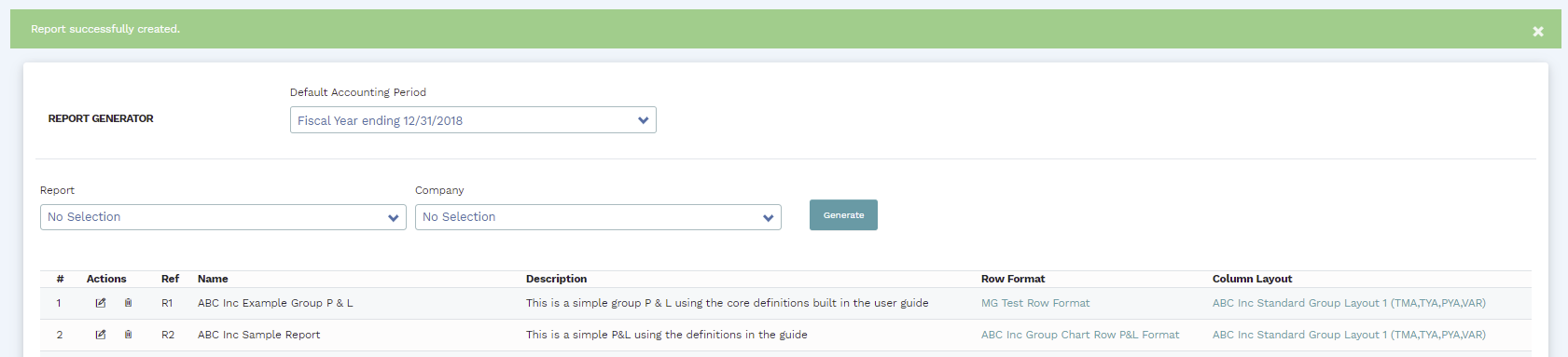
The newly created report is available for use in generating reports.
Comments
0 comments
Please sign in to leave a comment.