
Reporting segments establish and identify any additional chart of account segments/dimensions used by an organization beyond the natural account segment. The combination of the natural account and the reporting segments reflect the full general ledger chart of accounts structure existing with the underlying ERP for the each company incorporated into the Mondial accounting hub. .
The reporting segment option is available from the companies page; under the resources options for a specific company.

To create a new reporting segment or edit an existing one, click on the Reporting Segments icon seen in the image below:

The reporting segment page lists the reporting segments which have already been created together with the following actions;
Edit: alter the parameters of the accounting segment.
Delete: remove an accounting segment that has been created.
Options: this defines the list of codes and accounting segments as well the specific code for the account and a short description. (A further explanation of the options page has been provided below). The reporting segment page appears as shown below:
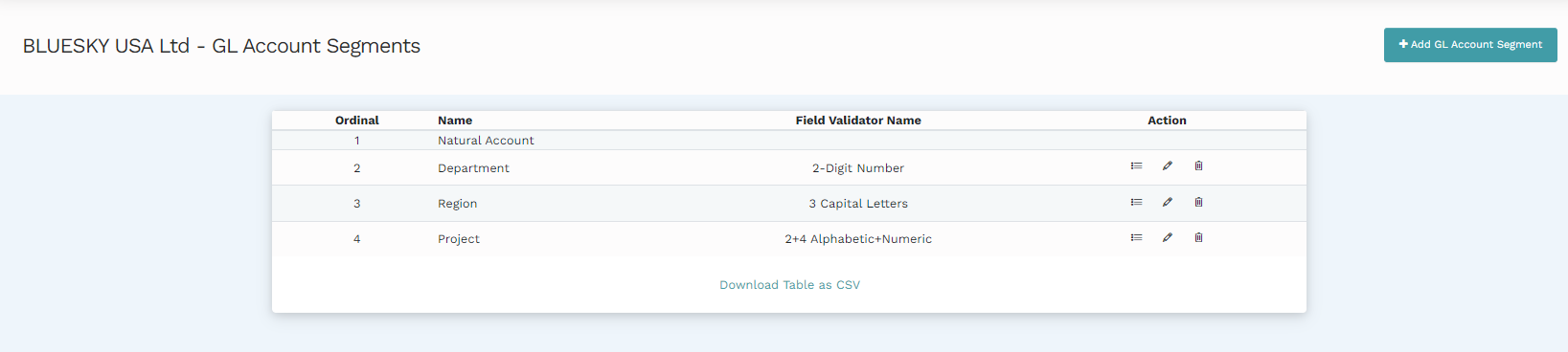
The reporting segments currently defined for the company will be presented here. To create a new accounting segment, click on the "Add New Account Segment" option.
Enter the relevant parameters on the page shown below:

| Field | Nature | Description |
| Ordinal | Data entry | The ordinal number entered here designates the position of the new reporting segment. When creating a new ordinal, the ordinal number of the new reporting segment is by default entered as the next number relative to the preceding reporting segment; for example, when creating a new reporting segment for the company used in the instance above, the ordinal will be set to six by default. |
| Name | Data entry | Enter the name for the new reporting segment |
| Field Validator | Dropdown | Define the valid character set which will be applied when entering the code for the new reporting segment. More information about the field validator is available in this article. |
| Enforce balancing | Check box | Check on this box to ensure that any accounting transactions that are entered/loaded incorporate this segment balance at this level of the chart of accounts. |
NB
You can download this table as a CSV by clicking on "Download Table as CSV". Read more on upload and download here.
Actions
When a new reporting segment has been created, there are a number of actions that can be performed as defined above - editing, reporting, and altering the options.
The Options action is the most relevant in this case. This is where the list of segment codes is stored and maintained. Typically this data will be loaded from the source ERP via Mondial's API. However existing codes can be edited or deleted, or new codes added directly into Mondial.
To get started, click on the options button that appears as the icon shown below:
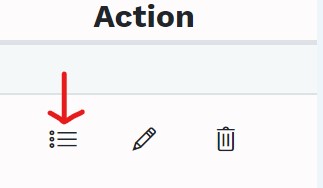
The options page contains the segment codes and descriptions which make up a specific reporting segment.
In the example below, having selected the options button for the department segment in the company BlueskyUSA, we are presented with the list of all departments codes and descriptions
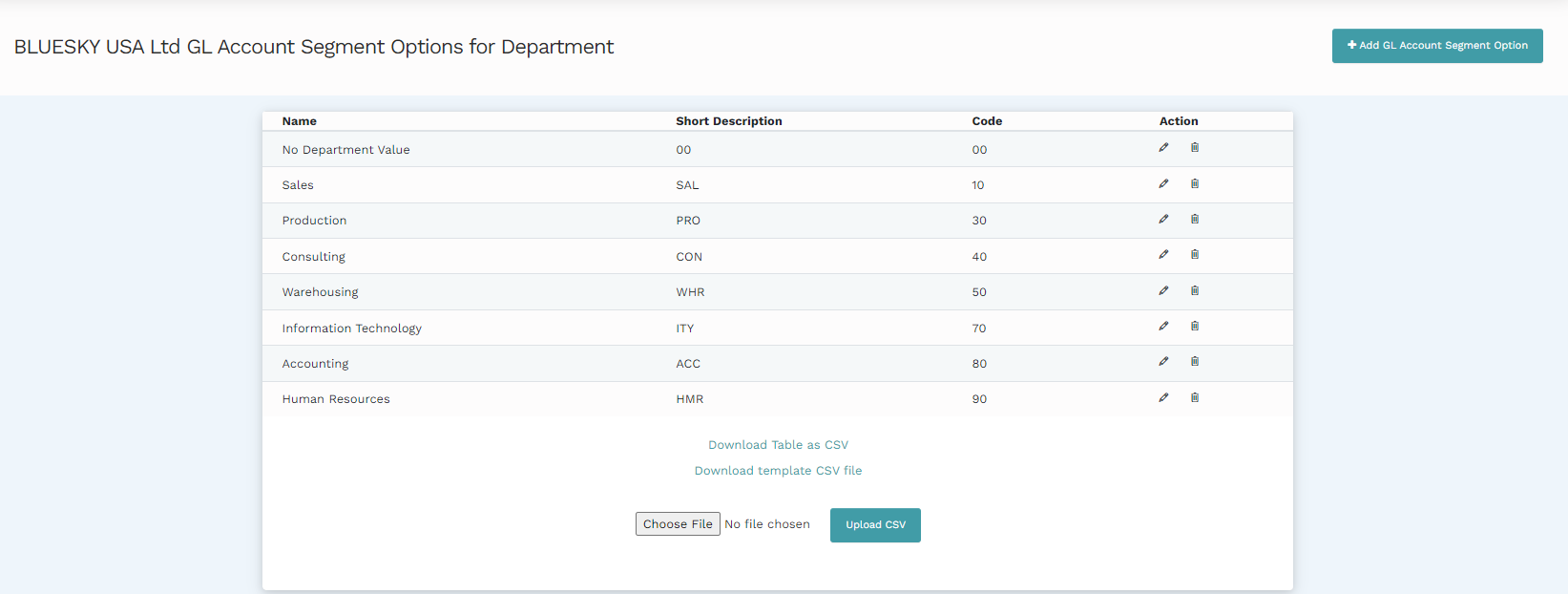
To add a new segment code into a department, click on the "Add GL account segment option." This will redirect to a setup page shown below:

The options here are data entry fields. The "Name" and "Short Description" fields define the new account segment option while the "Code" option associates a specific code to the newly created account.
Select "Create GL account segment option" and a new account with the defined parameters will be created.
Uploading and Downloading Account Segment Option as CSV or MS Excel
There is additional functionality that allows you to download and upload the Account Segment Option for Department which appears as shown below
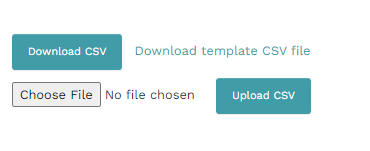
You can read more on the upload and download process here.
Comments
0 comments
Please sign in to leave a comment.