
The Chart of Accounts is the listing of all the core account codes residing in the general ledger.
In Mondial CRx, the Chart of Accounts segment is typically populated automatically through the connection of the software with the company's underlying source system. There are several additional actions that Mondial CRx allows the user to carry out such as; adding a new GL account, mapping the natural account set to an alternate account set, and downloading the CSV of the Chart of accounts.
The Chart of Accounts page is accessed from the companies resources segment:
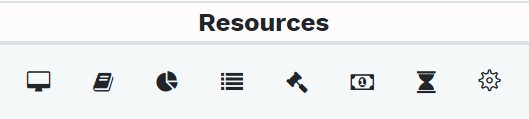
The icon for the COA is:

Selecting the icon redirects to the Chart of Accounts page which contains a list of all the GL accounts from the files uploaded from the underlying ERP system. The sample company Bluesky Corporation's Chart of Accounts appears as shown below:
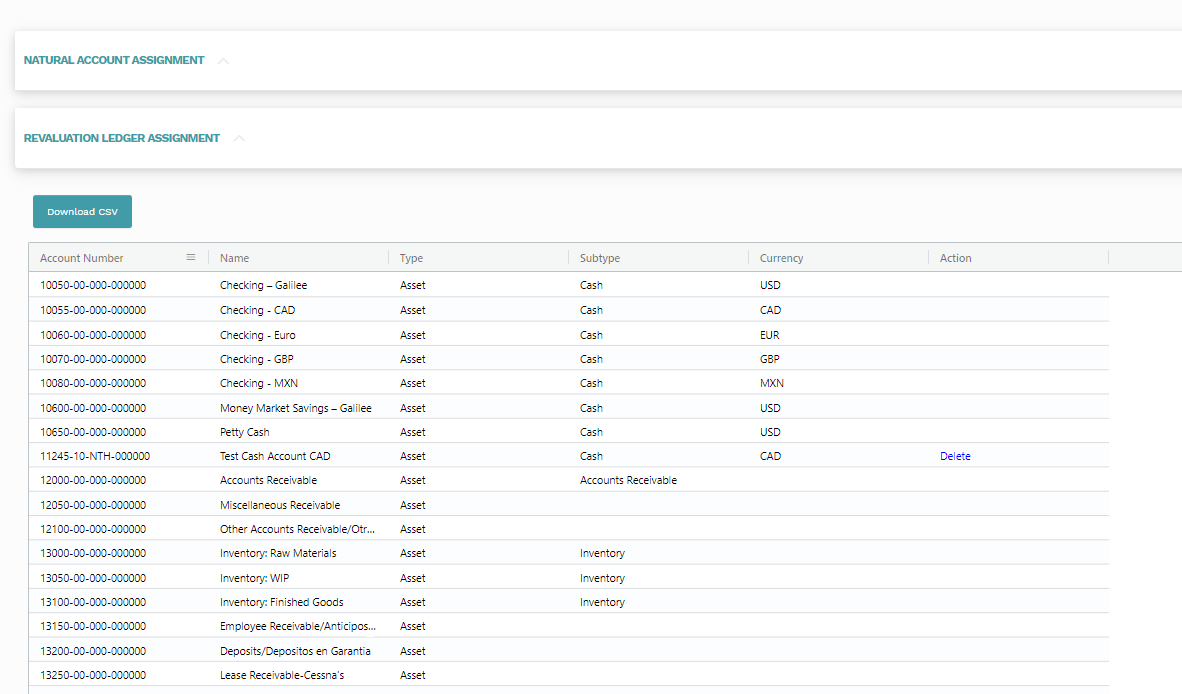
The following actions can be performed on this page:
- Creating a new GL account.
- Mapping a natural account set to an alternate account set
- Downloading the chart of accounts as a CSV file
Creating a New GL Account
Occasionally a company may need to add accounts that do not exist in the underlying core accounting system. This might be to record specific entries that need to reside outside of the core system - some type of group adjustment entry for example.
Mondial CRx allows you to create a new GL account into the COA without having to return to the source system - which would also mean that the COA would have to be re-uploaded.
To create a new GL account, select "Add GL Account." The field shown below will be displayed:
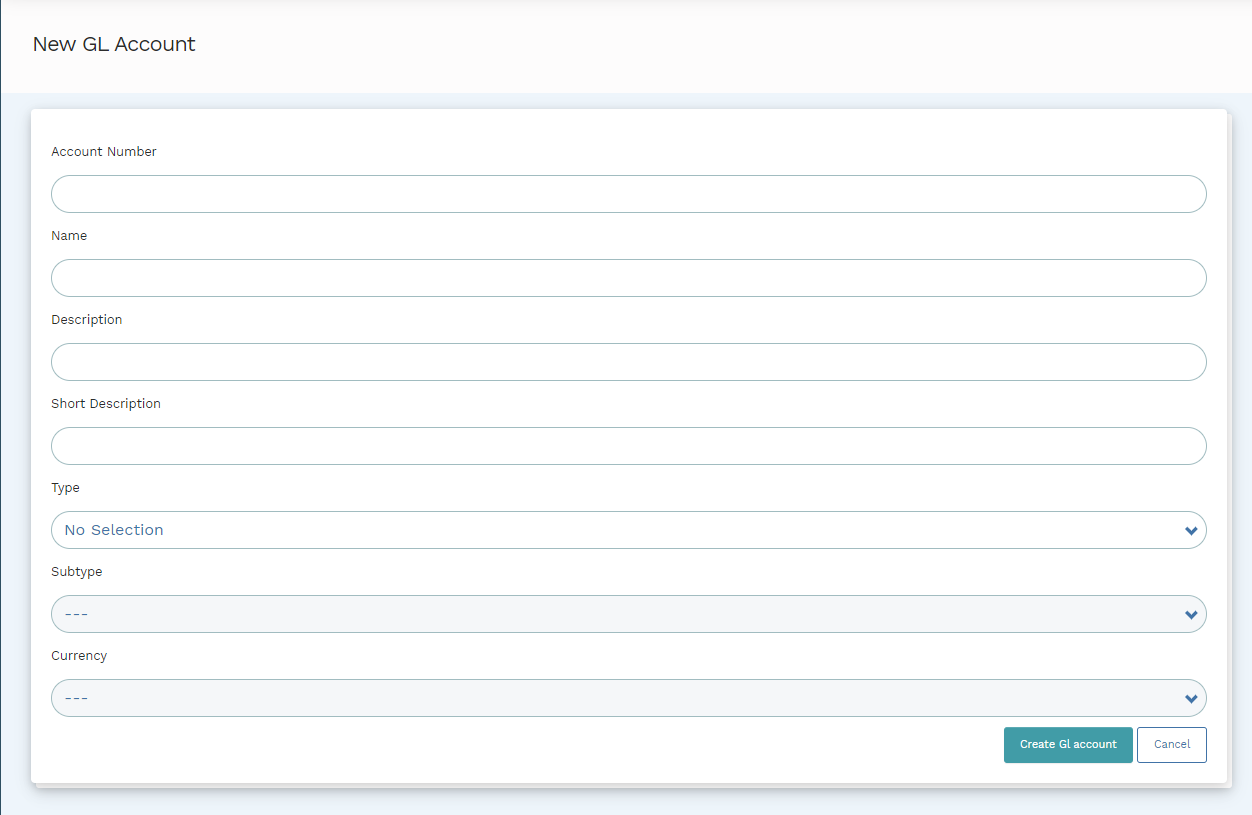
Enter the relevant information in the fields in order to define the new GL account.
Once all the parameters have been set, select "create GL account" and a new account will be created.
Providing there are no transactions associated with it an account can also be deleted. The option to delete is highlighted in blue against those accounts (on the right of the display) that meet the criteria.
Mapping a Natural Account Set to an Alternate Account Set
The chart of accounts page shows the local natural account set by default.
If Alternate account sets have been created and associated with the company (see Alternate Accounts and Natural Account Sets), this chart of account main display can also be used to link the local natural account codes to their alternate 'parent' accounts.
For example. the following options of natural accounts are available for the sample Bluesky Corporation company.
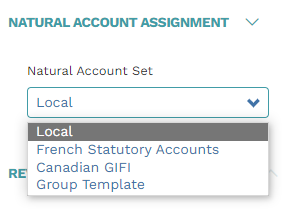
When mapping a local account set to an alternative account set, the assignable accounts that are available will depend on the alternate account chosen when setting up the natural account set. In this example, one of the alternative accounts set selected in the set up of French Statutory Accounts natural account set was Plan Comptable Général. This means a specific account in the local natural accounts can be assigned an account from the pre-defined alternative account codes available from the Plan Comptable.
To link natural accounts, based on the example above, first change the natural account set from Local to French Statutory Accounts.
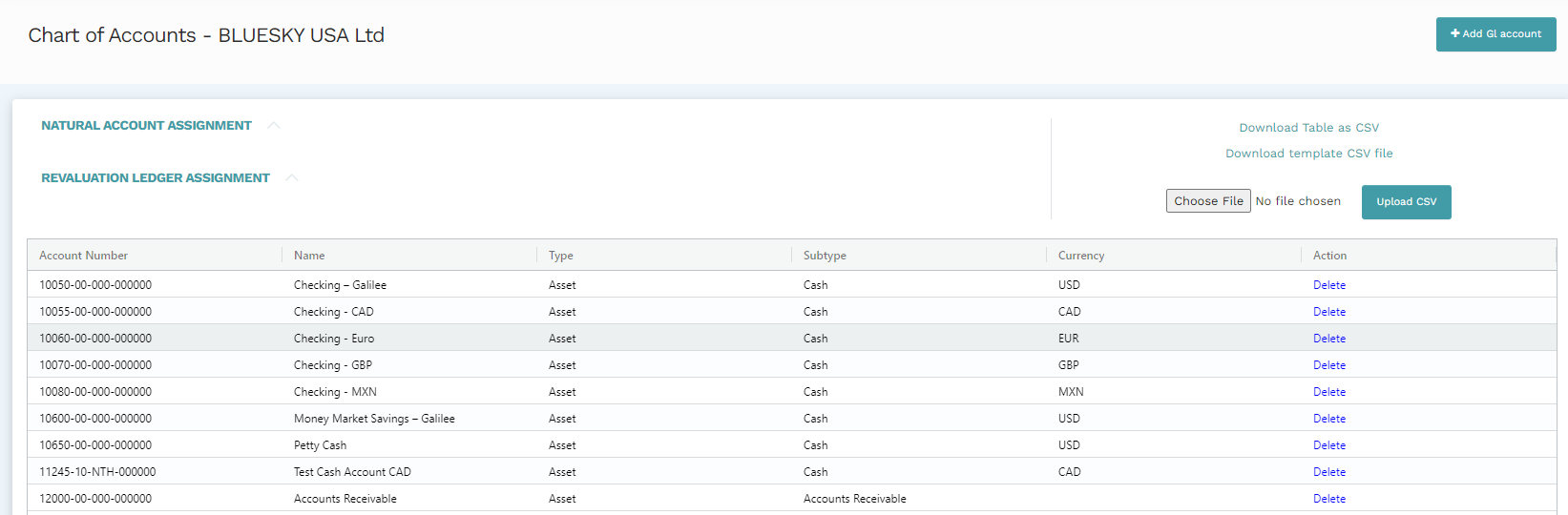
A new column appears in the display to show the Plan Comptable codes which have already been linked to the local natural account codes.
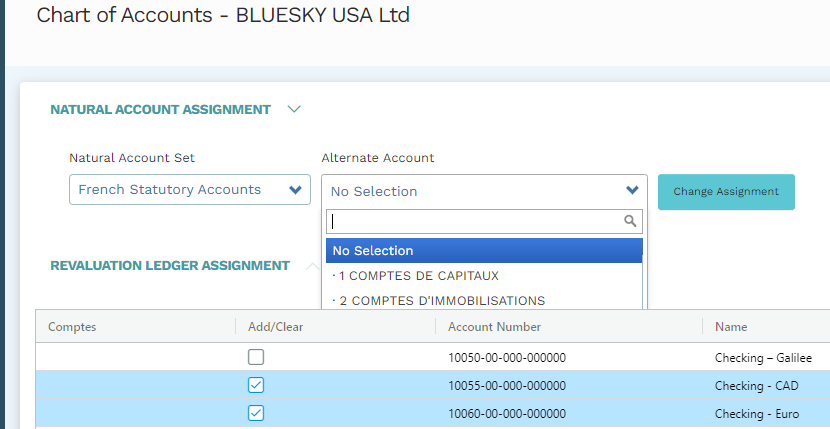
To add/change an alternate account association to a local account, first check the add/clear box to the left of the specific account (note: - multiple accounts can be selected).

Second, use the drop-down selection list under the alternate account heading. This will display a list of all the alternate accounts - in this case, the list of available Plan Comptable account codes.
If, as in the case, a 'hierarchy' of account codes exists, double-clicking the value will drop to the next level of detail in the hierarchy.
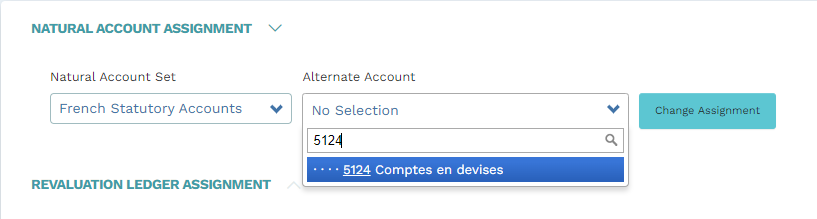
A search facility for a specific account can be performed by entering the account code in the search box.
Once the account has been selected, click "change assignment" to either add or change the association. The image below shows the new assignment.
To remove an assignment, select the check box for the account(s) to be unassigned, and then from the Alternate Account drop-down option, select "No Selection".
Revaluation Ledger Assignment
Revaluation ledger assignment provides for the association of a translation/revaluation method to a specific account code on a ledger-by-ledger basis.
Revaluation Ledger Assignment is available as a drop-down on the Chart of Accounts page. Clicking on Revaluation Ledger Assignment will show the Ledgers which are associated with the company and the FX types which accounts can be mapped into.
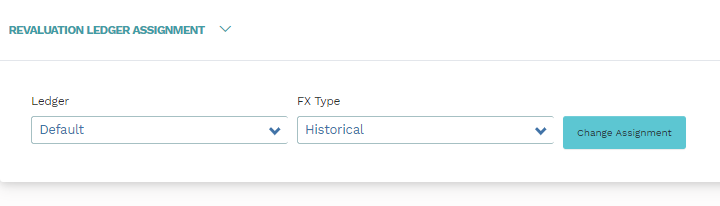
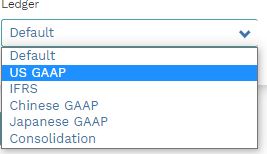
The Ledger option is a drop-down that contains the ledgers which have been created for the company. This article shows how ledgers can be created and other actions which can be done on the ledger.
In the current example, the ledger dropdown will reveal the ledgers available for the company:
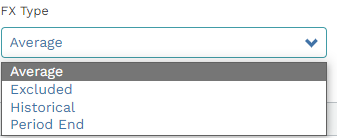
The FX types drop down in the example are shown below:
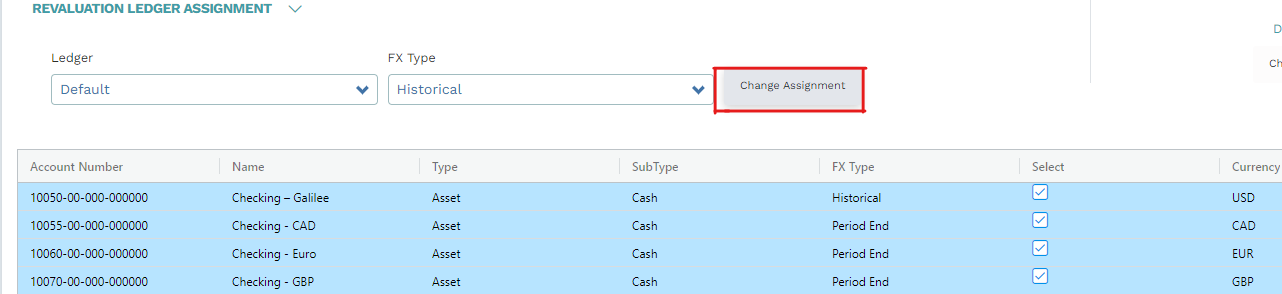
Two new columns; 'FX type' and 'Select' are processed into the ledger transactions.

To associate a transaction with a certain FX type, select the preferred FX type from the drop-down and check the "select" box related to the transaction.

Click "Change Assignment" and the FX type will be mapped into the transaction as shown below:
Download and Upload CSV
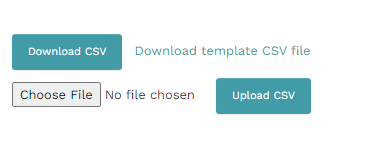
The Chart of Accounts can be downloaded by selecting the "Download CSV" text box on the top of the Chart of Accounts page. You can also upload a Chart of Accounts which is a local file on your computer.
The upload and download functionality is available at the top right part of the Chart of Accounts screen.
You can read more on this process here.
Audit-Checking
An audit checking process is available under the Chart of Accounts to ensure that all accounts imported from underlying accounting systems are mapped to alternate accounts established in Mondial.
If any 'natural' accounts are not mapped to an alternate account set, a notification is displayed.
Audit checking is also included under the chart of accounts functionality to ensure that the ledgers established in Mondial are associated with an FX type. If any accounts included within Mondial ledgers are not mapped to an FX type, a notification will be displayed.
Note
Be on the lookout for a red bell icon on top of the Chart of Accounts icon.
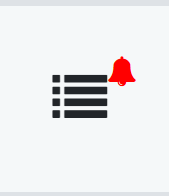
This icon indicates that some of the natural accounts set have not been mapped to an alternate account and/or some of the ledgers are not associated with an FX type.
Comments
0 comments
Please sign in to leave a comment.