
Users who can access and use Mondial CRx features are set up and administered in the User section. Only users who have designated rights can access the User maintenance features.
Several actions, such as the preferred email and password creation, are performed in this section.
To set up and administer users, click on the Enterprise Set-Up drop down on the left side of Mondial CRx.
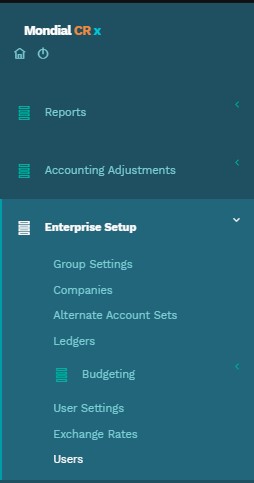
Clicking on "Users" will redirect you to a list of the users who already have access to the Mondial CRx system in your company.

To add a new user, click on the "Add User" box on the top right of the page.
This will redirect you to a user set-up page where you can create a new user by entering their email and creating - and confirming - a password as shown below.
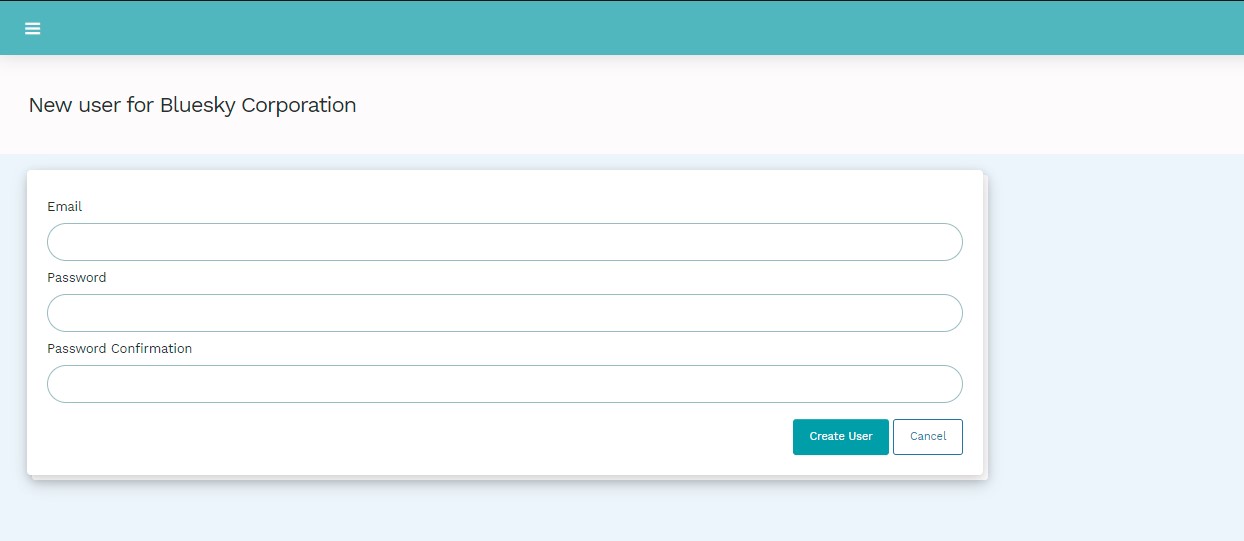
Once the relevant information has been entered, click on "Create User" and the new user will appear on the Users list. The number of users who can be set up is dependent on the number of users defined by the subscription package.
When the number of users who are set up in the system reaches the capped limit, the site admin will need to either delete an existing user or upgrade to a subscription package with a higher user limit cap.
Three actions can be performed on a new user; editing their information, deleting the user, and assigning roles.
This can be accessed under the actions column on the left side of the users' lists.
Roles Assignment
Roles are pre-defined by Mondial. Users do not have the ability to create, update or delete the pre-defined roles.
| Roles | Description |
| Site Admin | Creates and manages Groups and controls Exchange Rate Sources. (Mondial Use Only). |
| Client IT Admin | Manages the Users and has no access to operational features of the application or data. |
| Client Application Admin | Full access to all features and data within the application. (Excluding Site Admin Functionality). |
| Group Controller | Has access to all operational features of the application excluding management of users or the ability to create and manage companies. |
| Accountant | Similar functionality to a controller but is unable to run CTA functionality. |
| Report Developer | Has access to reporting options and can create and edit report writer reports. |
| Report Consumer | Read-only access to all reporting options. |
Permission Levels
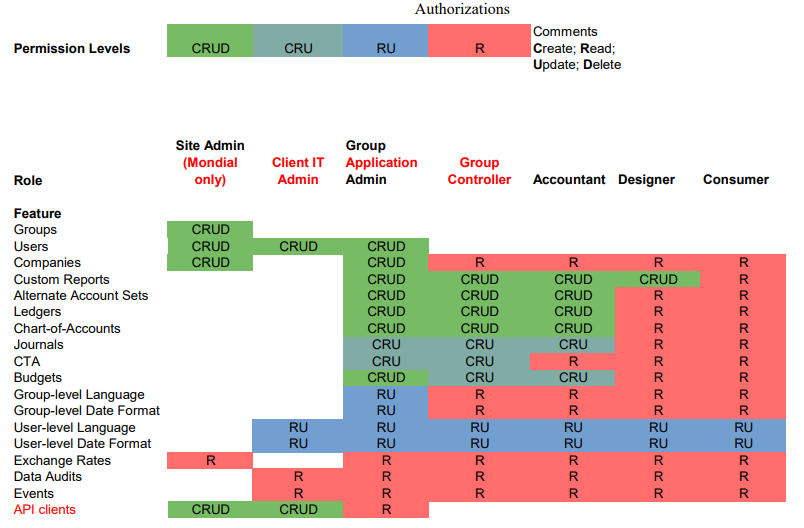
Every role has been associated with pre-defined permission levels. In the previous release, a system administrator could make changes to the permissions that a user had to features. The current version pre-defines the permission that users with different roles have as seen in the table below:
To assign the user a specific role in any company they have access to, click on the drop-down of the relevant company and select the desired role from the dropdown. The drop-down below shows the roles which the demo user above can be assigned in the companies:
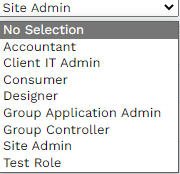
Access to different companies means that this specific user can be assigned different roles in different companies. For example, they can be Admins for Bluesky USA Ltd and at the same time be the Group CFO for Bluesky Canada, Inc.
When the user roles have been assigned, the set-up user will only access the information and features made available for the role.
Case Sensitivity
The email name field is case insensitive. You can create a new user with a combination of both upper case and lower case letters. On the Users page, the email name will be displayed in lower case, but you can use a combination of both lower and upper case letters to log in.
Note: User passwords are case-sensitive. You will need to enter the user password exactly as it is for login, unlike the user email name.
Comments
0 comments
Please sign in to leave a comment.