
Within Mondial CRx, in addition to accounting data being stored in a transaction and 'account' currencies, additional reporting currencies can be associated with each and every transaction in the Mondial data repository. As a consequence, this allows users the option to report in multiple currencies. Reports can be compiled and presented in different currencies as well as converted into a single currency for final consolidated reporting.
The exchange rates which are used to derive the converted data can be accessed through this option. Exchange rates are automatically loaded through Mondial's Connector API and stored on a day by day, currency by currency basis. The user can use the Exchange rates option to identify all the FX rates that have been loaded into the application.
When using this feature, the user chooses the source for their exchange are before defining their base currency (the currency being used currently) and the target currency (the currency which they want to use).
To access this option, click on the "Enterprise" dropdown on the left side of the Mondial CRx homepage.
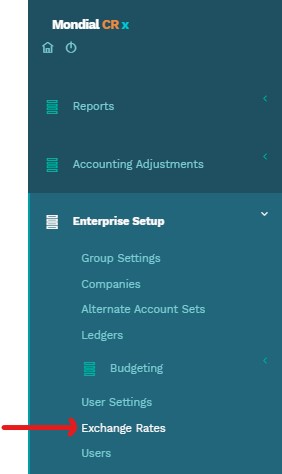
The user will be redirected to the Exchange Rates page shown below:
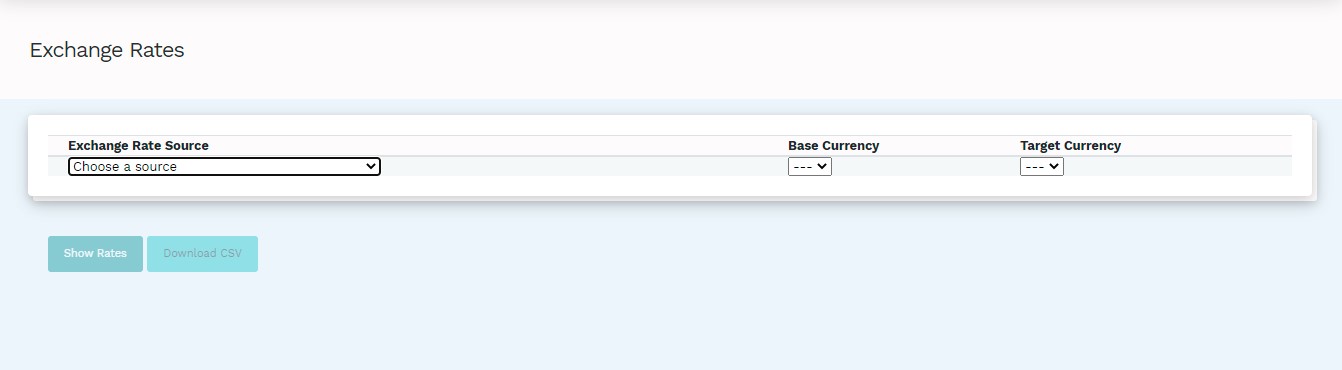
There are two exchange rates sources that are available to Mondial CRx; Banco de Mexico (SF60653) and European Central Bank Forex Reference Rates.
Do a drop-down on the "Choose a source" and the pick from the two sources.
Next, click on the "Base Currency" drop-down to select the base currency followed by the "Target Currency" to choose the target currency as shown in the illustration below.
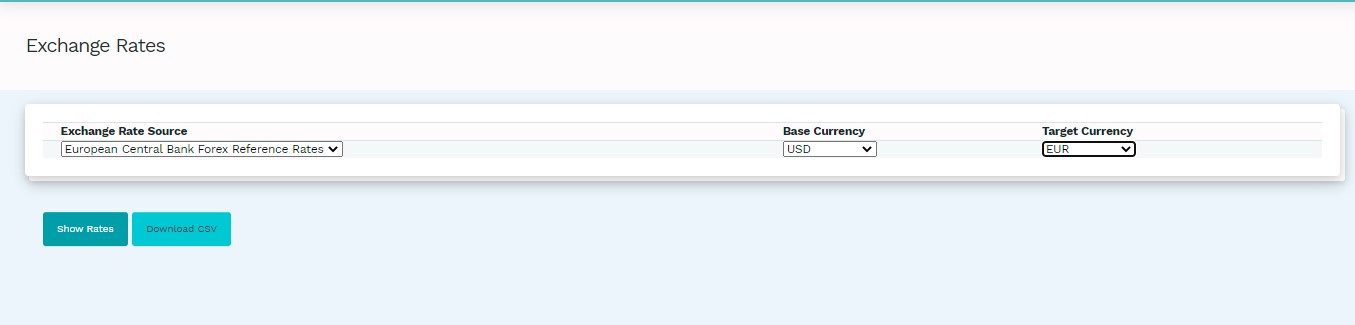
To view the exchange rates of the defined currencies in relation to the exchange rates sources, click on either "Download CSV" or "Show Rates".
"Download CSV" downloads the exchange rates in CSV format to your local files. The rates can be viewed using Microsoft Excel or any other spreadsheet software.
"Show Rates" runs an HTML view of the exchange rates on the page.
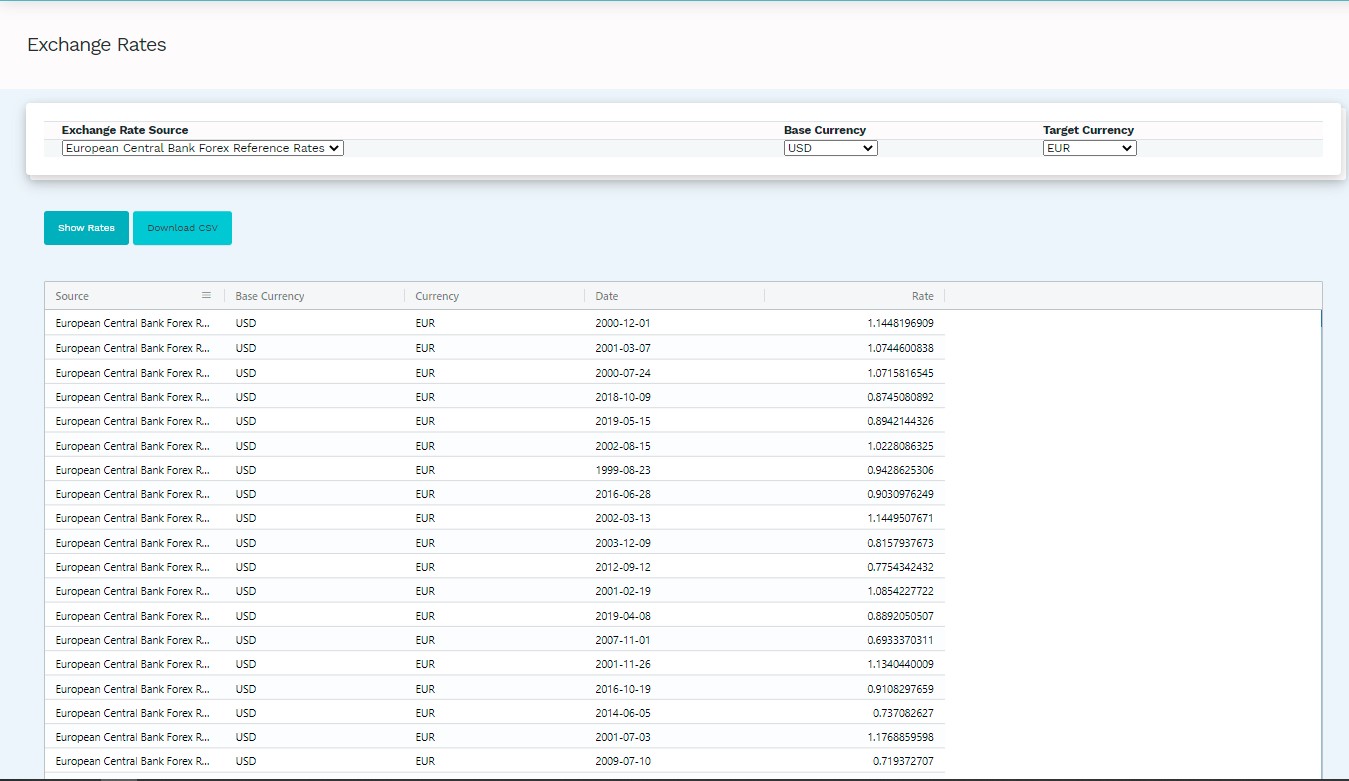
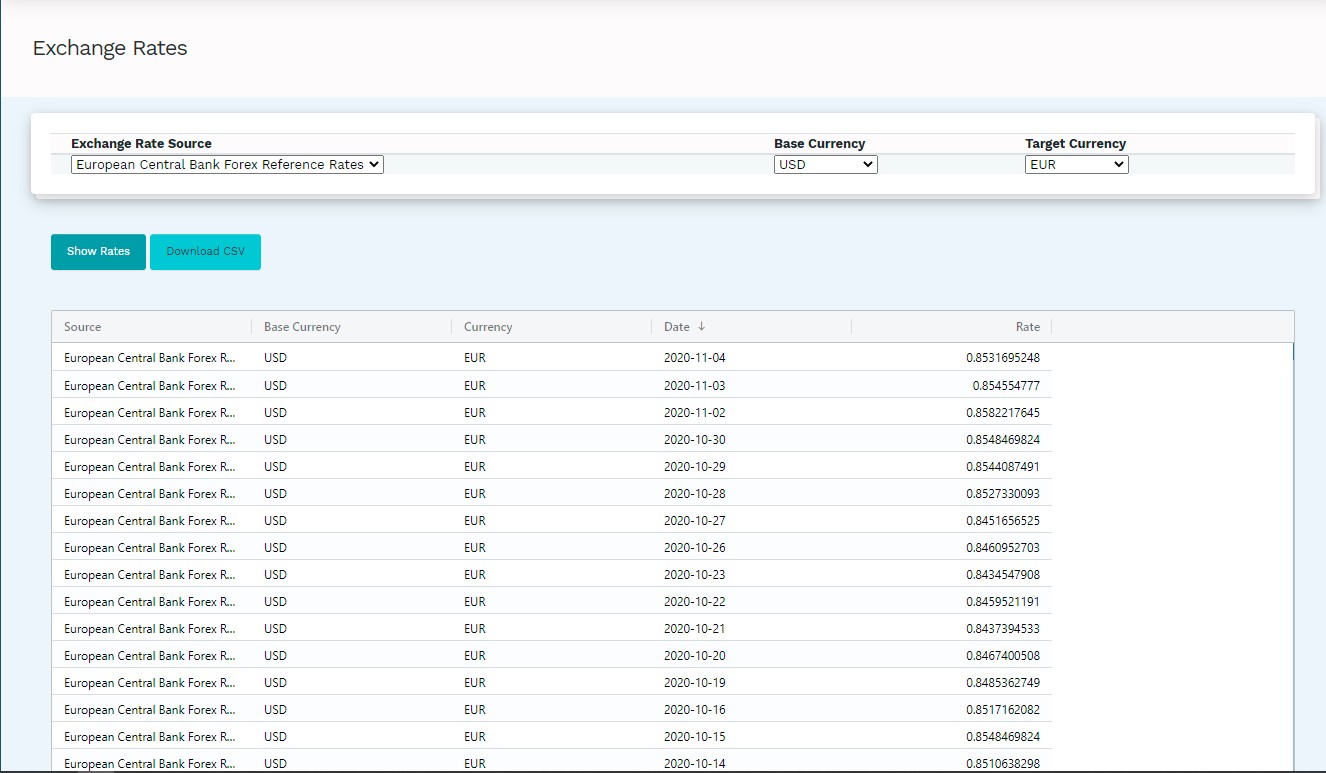
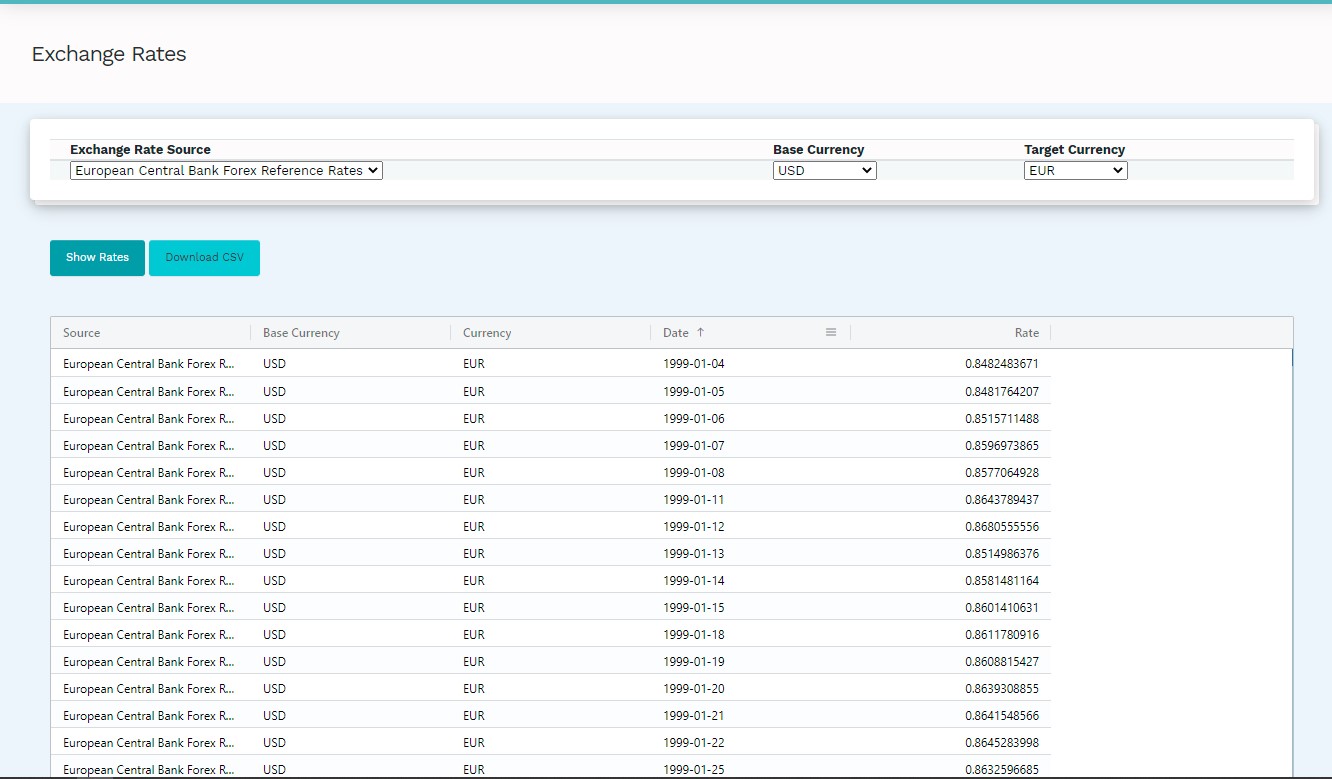
The user can view a randomized date list as shown above or choose to have either a "latest to oldest" or "oldest to latest" view by clicking on the "Date": the third column on the first row.
The "latest to oldest" format appears as shown below.
The "oldest to latest" list appears as shown below
Comments
0 comments
Please sign in to leave a comment.