
User Settings options provide individual user tailoring of the default format and language settings established in Group Settings; Enterprise Setup. User settings allow additional flexibility to modify the date format to suit the requirements of companies that compile reports from different localities which use different languages and/or date formats for localized company reporting.
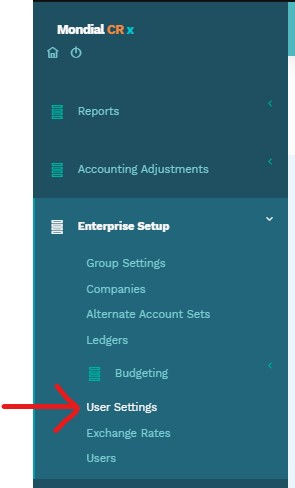
To add or edit user settings, click on "Enterprise Setup" on the Mondial CRx home page.
On the drop-down, click on "User Settings"
The "User Settings Page" will appear.
The default language set here-in is English-US and so is the date format which is by default the US date format.
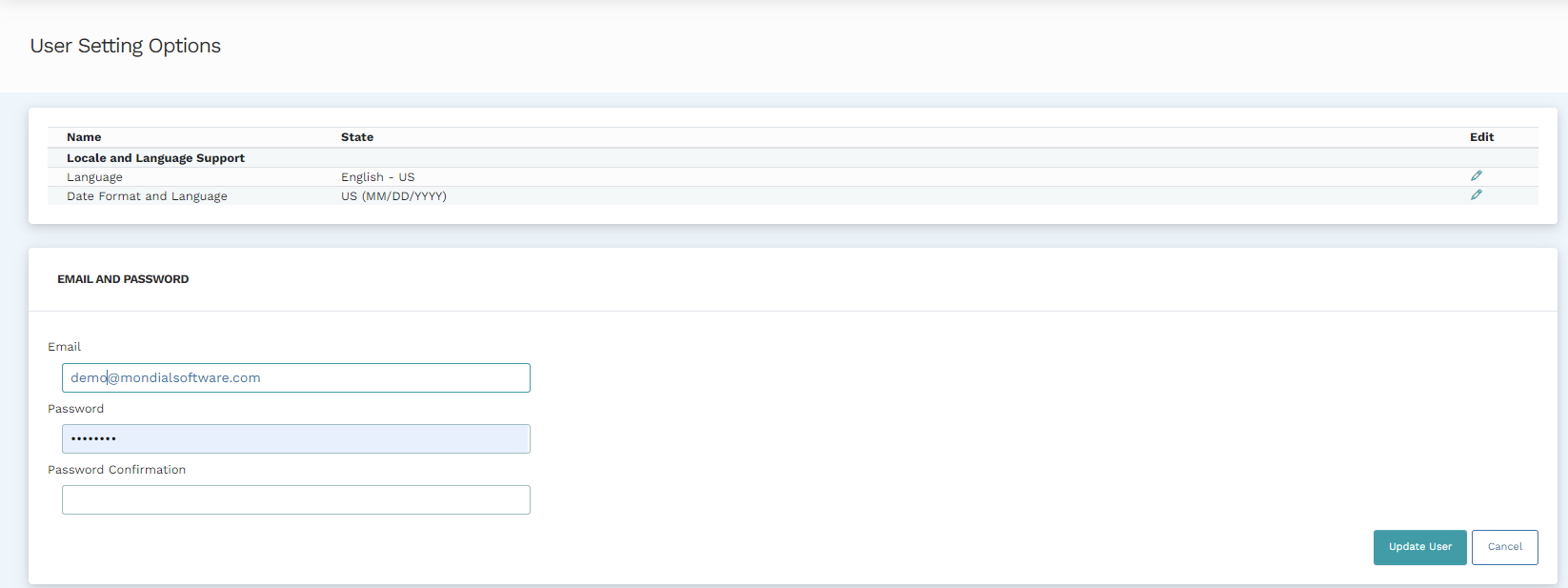
To change any setting, click on the pen icon at the intersection between the relevant row with the "edit" column.
When editing both rows, a drop-down with some of the elements that the user can choose from will appear under the "State" column and an "Update" button to the effect of saving the changes made within the user options.
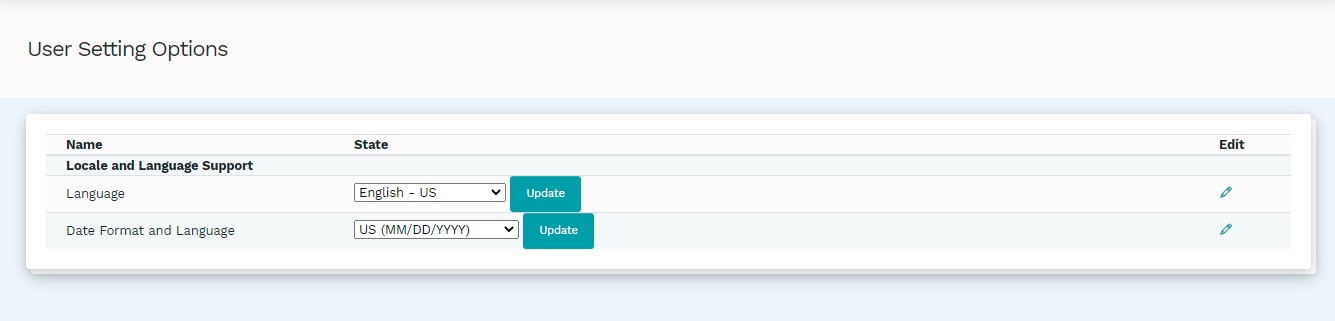
The drop-down on both rows presents the user with a number of different language and date format options.
The following language options are available: English - Canada, English - US, Spanish - US, and Chinese - Simplified.
The following date format options are available: Canada (YYYY-MM-DD), US (MM/DD/YYYY), and Mexico (MM/DD/YYYY).
Once the preferred option is chosen from the drop-down, click the "Update" button and the changes will reflect on the data within Mondial CRx.
Passwords
You can update/change your password on this page.
To do this, enter the password you would like to use, re-enter it to confirm, and click on Update User.
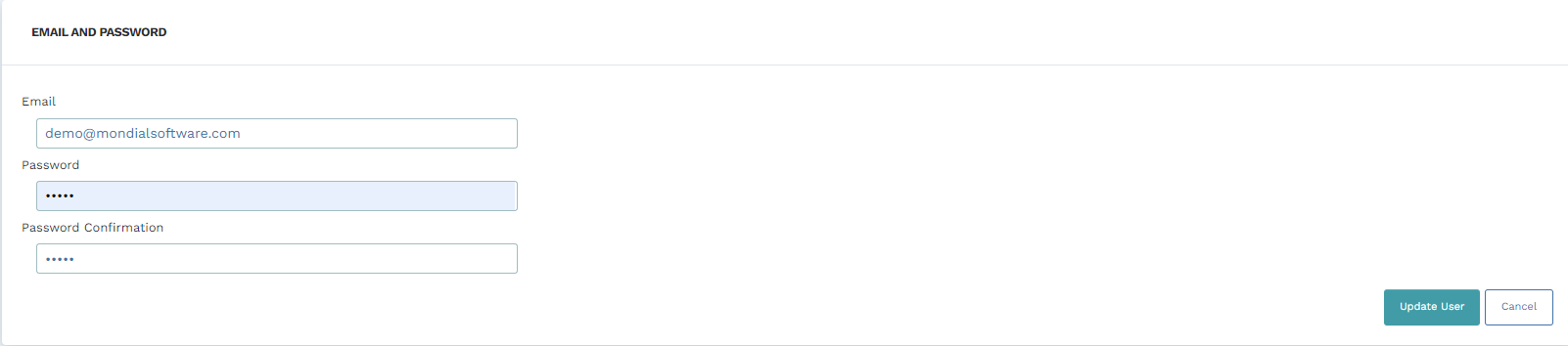
NB - While users can change their passwords, the responsibility of changing their emails is held by the site administrators.
Comments
0 comments
Please sign in to leave a comment.