
This feature allows you to:
- Download pre-existing data which already exists in Mondial in the form of a a CSV file, to edit the file (typically using MS Excel) and to re upload amended back to into Mondial.
- In addition, in certain areas of the product, an empty 'template' can be downloaded and used to add data from scratch into the Mondial environment. For example, if Mondial is not directly connected to an underlying ERP, from which the Chart of Accounts can be imported, a template of the required fields can be downloaded into Excel. Data can then be added into the excel environment (taking advantage of its copy , paste, manipulate features) and then up loaded into Mondial on mass, negating the need to add each account 'manually' within Mondial.
The Download CSV feature is helpful for users who prefer to maintain copies of their data within the typical Excel environment. On the other hand, the Upload CSV feature speeds up the set-up process as the user can upload and use existing data that currently resides in Excel.
For this sample case, the article uses the upload and download process for Row-Formats. The Upload or download functionality available for other data such as customers, vendors, chart of accounts and other account segments (cost centers, departments etc.)
Uploading and Downloading Row Formats using a CSV file and MS Excel
To get started, follow the steps shown here to create a new row.
This feature is available on the top right section of the "Edit Row Format" screen as seen below:

1. Download Template CSV File
This is a standard-defined template that is available for download and use. It can be used as a template to create a CSV row format offline. The format can eventually be uploaded and used to generate a report on Mondial CRx.
To download this template, click on the 'Download template CSV file' text on the "Edit Row Format" screen.
2. Download CSV
A defined "row format" can be downloaded and altered offline. Once the relevant elements such as the report row calculation details are defined, click on the download CSV to download the created format into CSV.
To illustrate this, we can download the sample "row format" created here by clicking on the Download CSV option on the top right section of the screen.
The 'row format' on Mondial CRx looks as follows;

The downloaded CSV will appear as shown below.

The details in the CSV can be altered offline using Microsoft Excel parameters.
3. Upload CSV
The process of setting up a new row format can be sped up by making use of the Upload option. CSVs which are created offline can be uploaded and used to create new report row formats.
To upload a CSV file, click on the Browse button.
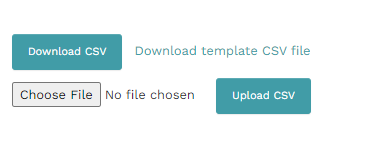
Browse your local files and choose the right CSV file. The 'Browse' field will indicate that a new CSV has been selected.
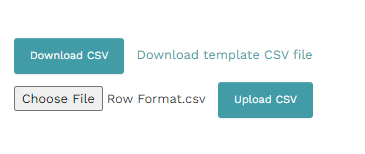
Click Upload CSV and the local CSV will run as a new row format on Mondial CRx.
To illustrate this, the picture below is a local CSV file that could be uploaded on Mondial CRx.
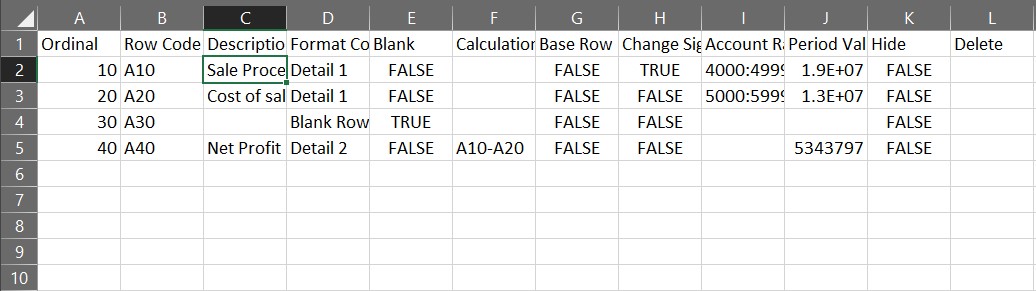
Once the CSV is uploaded in line with the steps above, the row format pane on Mondial CRx will appear as shown below:

This approach is particularly beneficial when creating many row formats to generate a longer report.
Comments
0 comments
Please sign in to leave a comment.