
On the Mondial Home screen select Reports, Report Writer, Reports Footers.

A list of previously formatted Report Footers will be displayed on the screen. On the top right of the screen, click on the option to add a new footer.
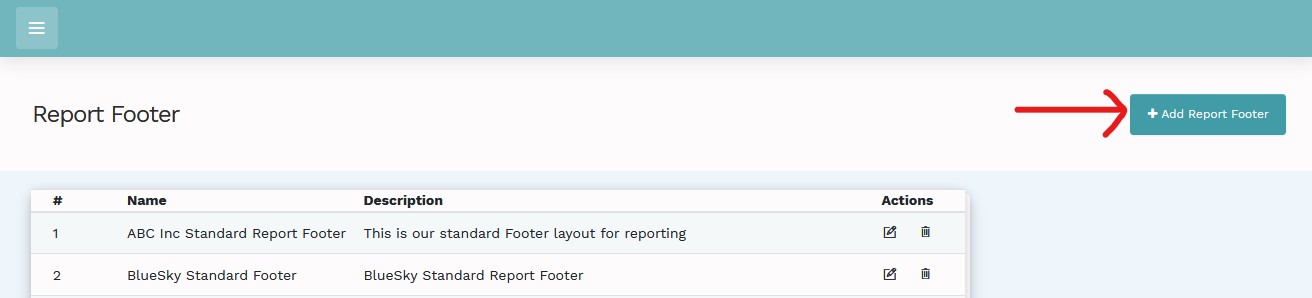
If Add Report Footer is selected the following screen is displayed whereby you can add a name for the footer and a description to explain the footer in more detail.
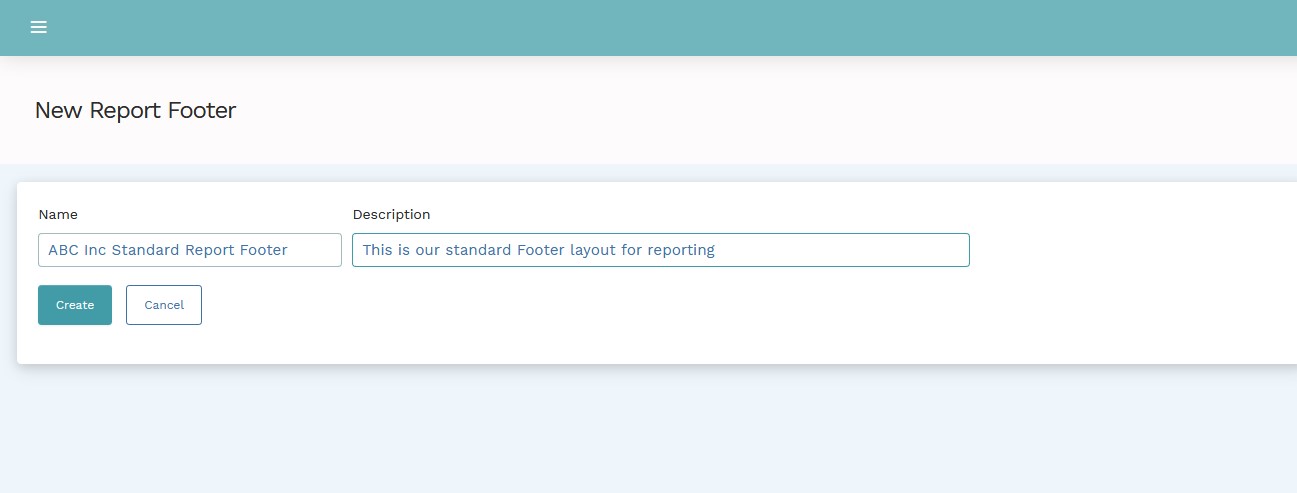
Select Create and the following screen will be presented
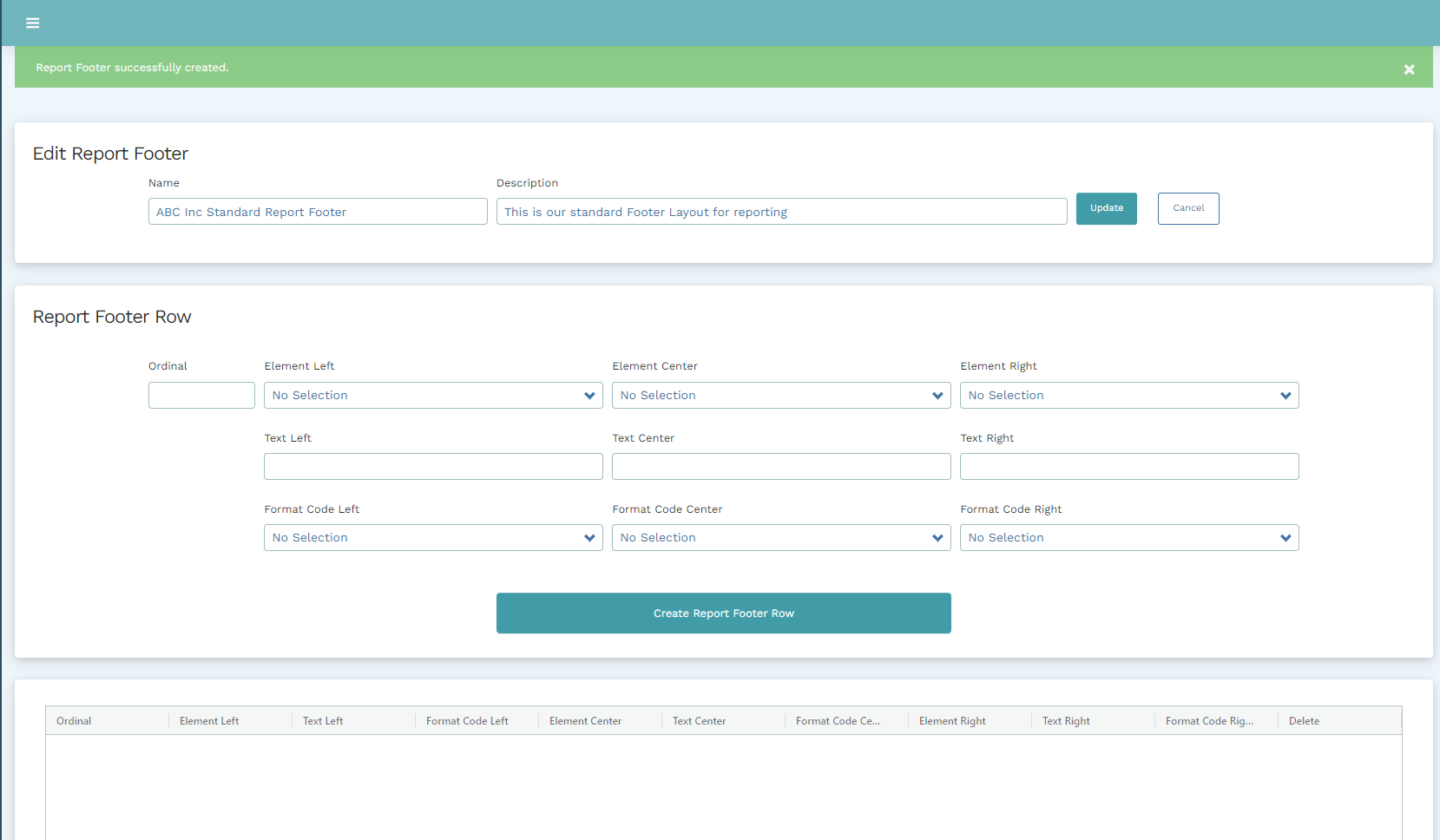
The middle panel will now be completed using a combination of data entry and drop-down selections as shown in the table below:
| Field | Nature |
Description |
| Ordinal | Data Entry field | A numbering sequence to ensure that data required is presented in the order desired. A sequence in the multiples of ten such as 10, 20, 30, etc is suggested. This allows for the entry of additional rows in the footer if required later. |
| Element left, element center, and element right | Drop Down Section |
Select the option required from the list presented
Key Notes: If Company Logo or name is selected, these will be retrieved from the entries added during the Enterprise Set Up Stage of the Mondial CRx application
|
| Text Left, Center, or Right | Data Entry field |
Add a piece of user-defined text as required. |
| Format Code Left, Center, or Right | Drop Down Section |
You can select the format code that will be applied to the text on the left, center, and right of the report. Read more on Format codes here. |
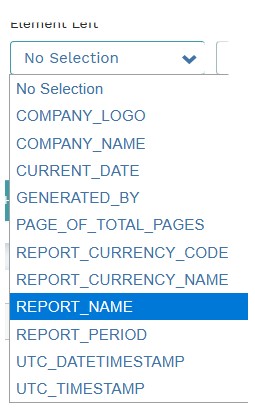
Note: Elements and text cannot be mixed with the
same ordinal. They MUST be separated using a new ordinal. So, for
example, text could be placed on ordinal row 10 and elements on ordinal
row 20
When information has been added, select the Create Report Footer button. The newly created row will appear in the bottom section of the Report Header Screen as below...
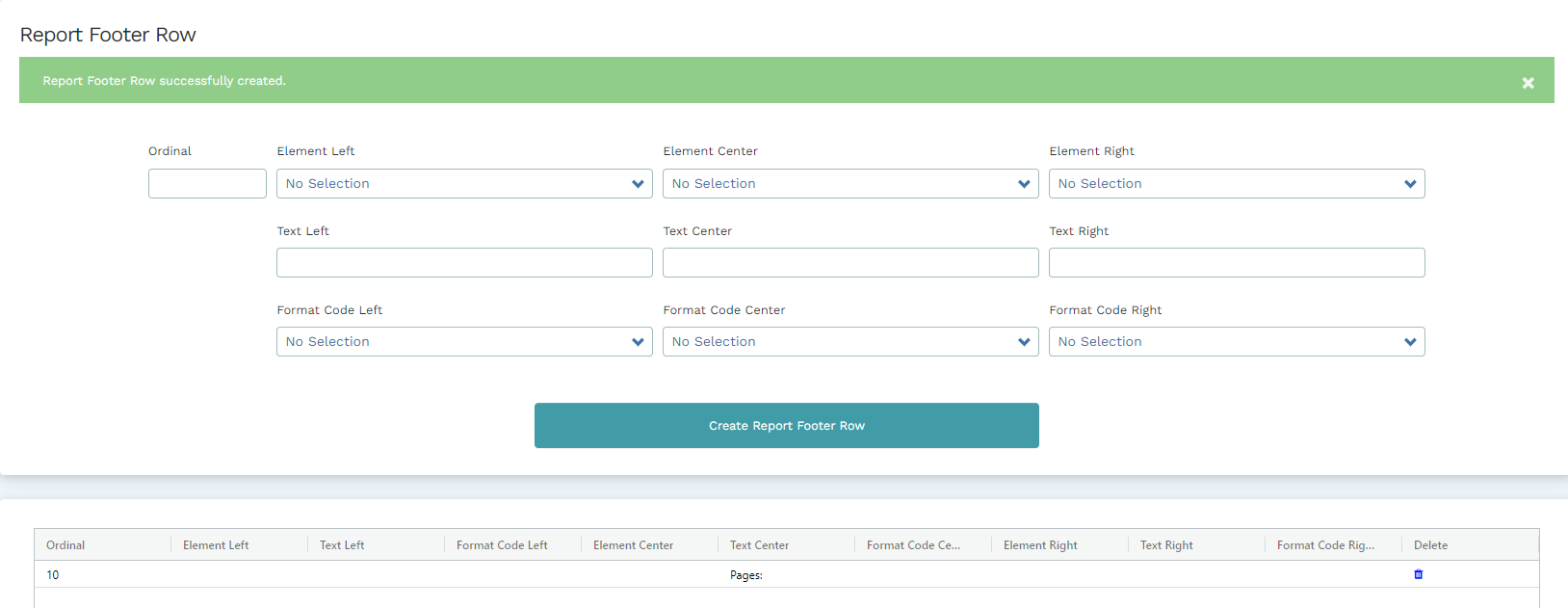
Note: On the far right of the created footer, there is a delete button.
This can be used to delete a specific footer which has been wrongfully created.
You can add a second row with ordinal 20 and also select Elements Center (Page_Of_Total_Pages) for the entry fields. Provide the necessary information and then select the Create Report Footer Row button.
The Footer Row will now be created.
The newly created row will appear in the bottom section of the Report Header Screen below where a text ordinal is created followed by an element different from the first footer.

Return to the Report Footers home screen and the new definition will have been added to the Report Footer list and will be available for later use.
Note: The newly created Report Footer can be edited further or deleted.
Use the action selections listed to the right of the description to edit and delete.
Comments
0 comments
Please sign in to leave a comment.