
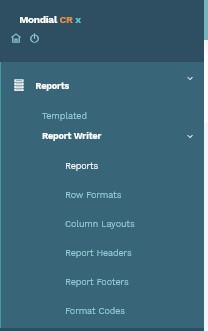
To run a new report, click on the "Reports" option in the "Report Writer" dropdown.
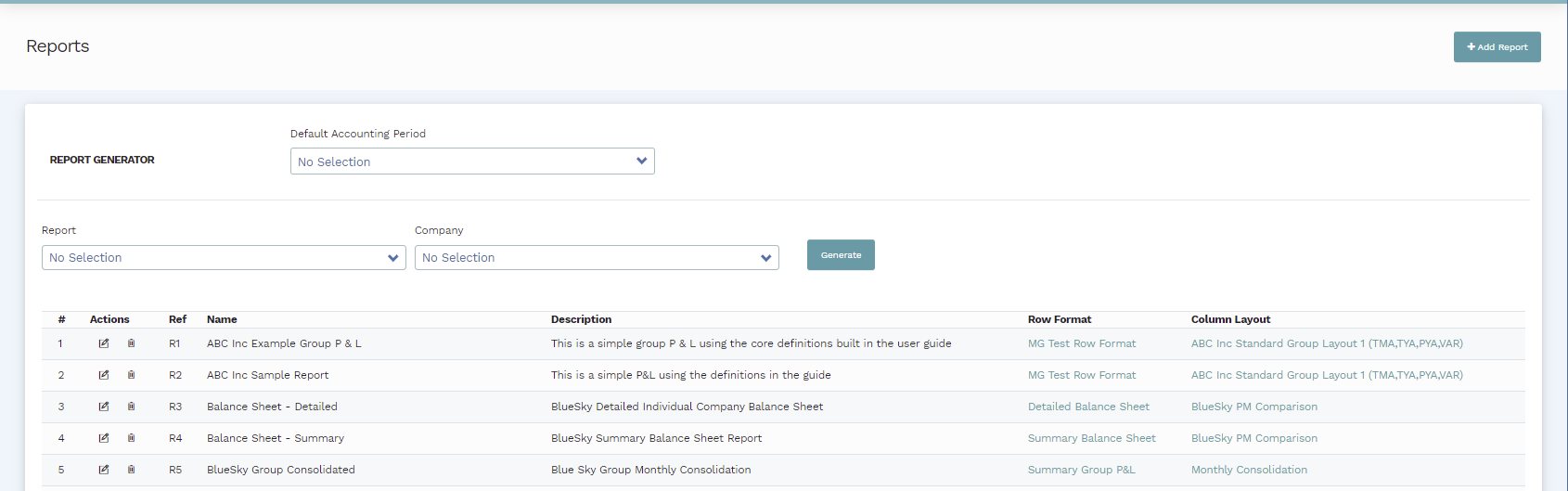
The 'Reports' screen allows you to do the following: create a new report (building a new report has been explained further in this article), choose the default accounting period for the imminent report, and generate (running) the report. The 'Reports' page will look like shown below:
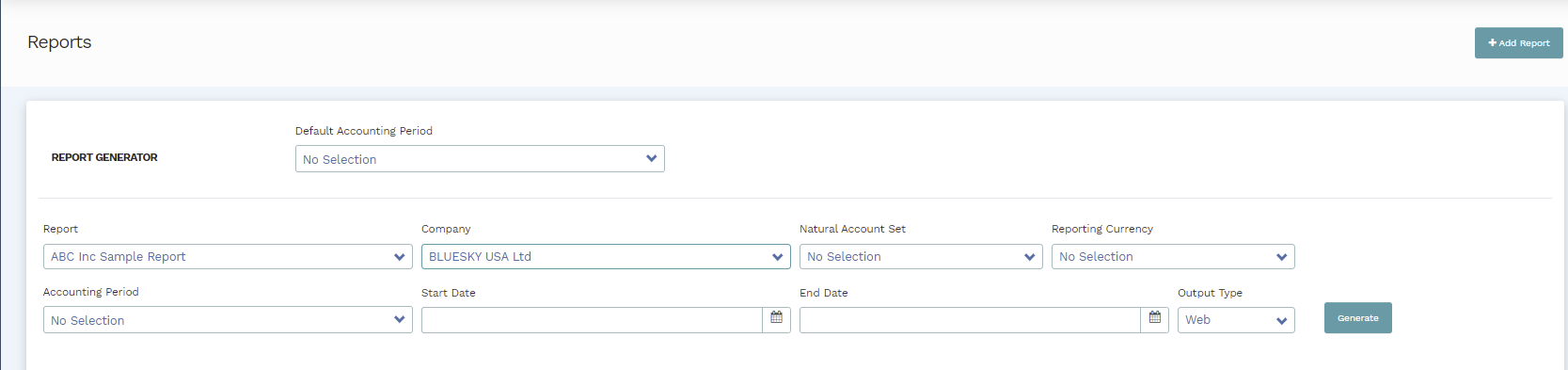
To generate a report from the template created in the preceding articles, simply select the name of the report and define the company from the dropdowns. For the current example, select "ABC Inc Sample Report" and select the company "Bluesky USA" in the Company drop-down.
After defining the report and company, the following elements will appear by default - natural account set, reporting currency, accounting period, and the report output type. Enter the relevant information which is relative to the instructions entered in the previous steps.
You can choose the file format of the generated report by selecting the prefered output type
from the "Output Type" drop down.
The following output formats are available; Web, PDF and Excel.
For the current example, the relevant parameters would appear as shown below: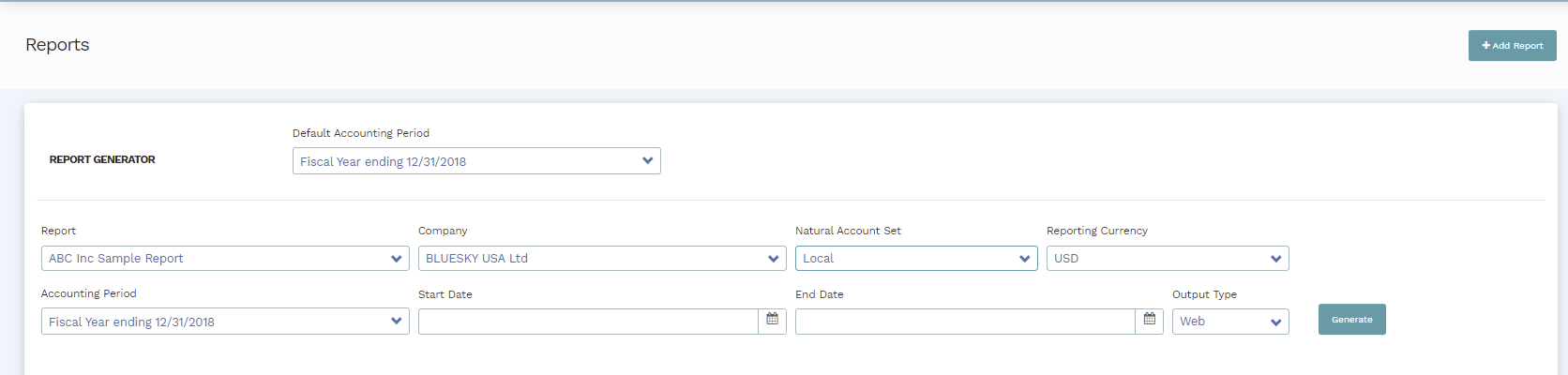
Upon completion, click "Generate" and the output will be presented in a new browser window.
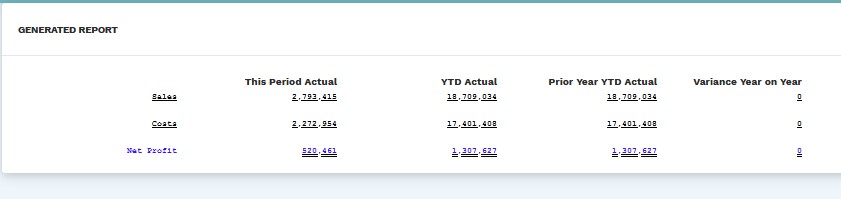
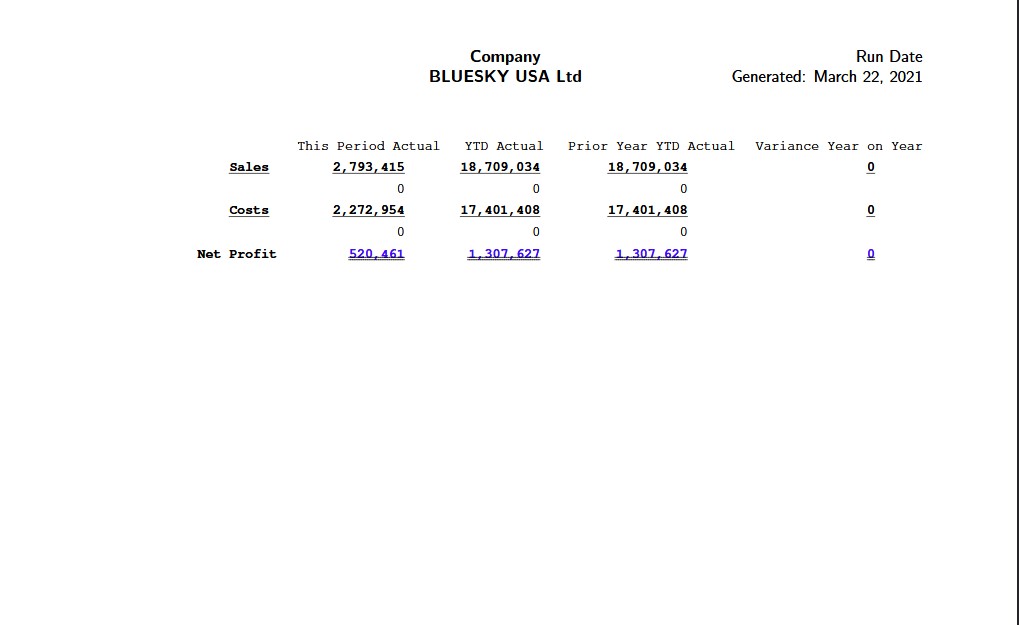
The output of the guide example will appear as follows:
1. Web Output
2. PDF Output
Reports with Budgets
When running a report which has been associated with budgets, a new dropdown box, Budgets, is presented for selection. You can choose the relevant budget to run your report with from this dropdown.

Comments
0 comments
Please sign in to leave a comment.