
From within Mondial CRx, click the question mark icon on the top left part of the screen. You will be redirected to Zendesk.

Raising a request for Help (a support ticket)
As you enter Zendesk you will be presented with our home screen:

To create a support ticket, simply click on the “Submit a Request" link at the top right of the above screen. You will be presented with the following:

Enter a working email that will be used to create your account as a Mondial Zendesk user. Additionally, the support team will reply and follow up on your request by sending emails to the email you enter here.
Please provide a brief summary of the issue in the subject field. In the description, please provide as much detail as possible to help us solve your problem. For example, if it is a problem running a report, provide things like:
- the name of the report
- the accounting period you were running it for
- Did it error? What was the error message? Provide a screenshot if you can
- Did it run but return no data?
- Did it but returned incorrect data somewhere in the report (again, screenshots highlighting the data discrepancy would really help).
Please also provide a product component using the drop down. This helps us to quickly re-direct your request to an appropriate support agent without having to work through the detail description first.
Finally, any attachments you need to provide (a report PDF for example) can be provided in the attachment section.
In short, the more information you can provide about an issue, the quicker we will be able to start working on it without having to come back to you for more information!
Once you have submitted your request you will receive an email acknowledgment that we have received it and that it is in our queue to be worked on. You will also be notified at appropriate points as the issue progresses through our help desk process.
You can check on progress yourself from within your Zendesk support console where you can see all information relating to the tickets you have raised and their status.
Note: to follow up on your request, you need to be a verified Mondial Zendesk user.
The process of setting up a user is described below in the final section of this article.
To check on a ticket's progress:
From your Home screen:
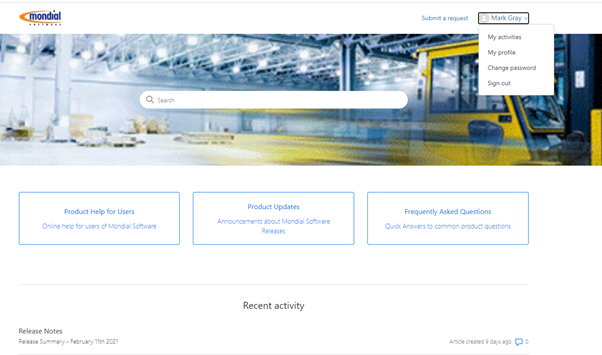
Using the dropdown against your name in the top left of the screen choose My Activities.
This will present the following with screen detailing information about your requests.

Here, you can sort tickets by requests raised directly by yourself, any you were copied in on and their status in the Mondial support process.
Setting up a Zendesk User Profile
Once you submit a request on Zendesk, you automatically create an account for your email.
Mondial Support Team will subsequently verify your email and register you as a user. To access your account after verification, go to Mondial Zendesk Homepage and reset your password. You can then log in to your account and follow up on your request and/or present more requests which will be answered promptly.
Comments
0 comments
Please sign in to leave a comment.